Lock Screen somewm-only
You will learn
- why lock screens are a security surface, and why Wayland's session-lock protocol lets ours be ordinary Lua widgets
- the SomeWM lock API:
set_lock_surface, lock covers,authenticate, and the threelock::signals - how to run a masked password prompt inside a keygrabber, with UTF-8 input handled byte by byte
- why exactly one piece of code should own the failed-attempts counter
- why the Lock actions in the exit screen and main menu had to wait until this chapter
Where We Are
In chapter 11 we finished the control center: profile, sliders, toggles, and a calendar, all reading system state through shared widget modules. Every modal surface in this config, from the exit screen onward, has used the same vocabulary: a fullscreen or popup surface, a keygrabber that owns the keyboard while it is up, and widgets rebuilt when state changes. This chapter is the last of them, and the one where that vocabulary meets a real security boundary. To catch up: git checkout 11-dashboard.
Why Lock Screens Are Different
Everything else we have built is cosmetic in the sense that a bug costs you convenience. A lock screen bug costs you the lock. If the prompt crashes and the session underneath becomes visible and clickable, the lock did not just look bad, it failed at its one job.
This is why, on Wayland, locking is not something a random client is allowed to improvise. The ext-session-lock protocol puts the compositor in charge: while the session is locked, the compositor stops rendering normal surfaces entirely and shows only designated lock surfaces. Nothing underneath is displayed, no input reaches it, and if the lock client crashes the compositor keeps the screen locked rather than falling open. The security guarantee lives in the compositor, not in the prompt.
SomeWM is the compositor, and our config runs inside it. So SomeWM exposes the protocol to Lua, and the lock screen itself gets to be ordinary widget code: textboxes, backgrounds, a keygrabber. All the techniques from the last five chapters, pointed at a surface the compositor promises to keep on top.
This chapter is SomeWM-only for a structural reason, not a missing-feature reason. X11 has no equivalent secure lock API for a window manager to offer: an X11 "lock screen" drawn by AwesomeWM would be just another window, and a crash or an unredirected surface would expose the session. On X11 the established answer is a separate dedicated locker program, wired to the session: xss-lock plus i3lock, xsecurelock, or similar, spawned from a keybinding or systemd. If you are following this series on AwesomeWM, set one of those up for actual locking, and read this chapter as widget-building practice: everything except the awesome.* lock calls is portable widget code.
The Lock API
SomeWM's lock support (see the header comment in lockscreen/init.lua, which links the somewm PR that introduced it) is a small surface:
awesome.set_lock_surface(wibox)registers a wibox as the interactive lock surface;awesome.clear_lock_surface()unregisters it.awesome.add_lock_cover(wibox)/awesome.remove_lock_cover(wibox)register plain covers for additional monitors.awesome.lock()locks the session;awesome.unlock()releases it;awesome.lockedis the current state.awesome.authenticate(password)checks a password against PAM and returns a boolean. PAM is the same authentication stack your login screen uses, so the password checked is your real user password, and we never store or compare it ourselves.- Three signals drive the module:
lock::activatewhen the session locks,lock::deactivatewhen it unlocks, andlock::auth_failedwhen an authentication attempt is rejected.
rc.lua loads the module through the same try() guard the notification system uses, because these are the two modules that can lock you out of your own session if they fail to load:
-- rc.lua
-- Lockscreen: somewm's built-in session lock support.
try("lockscreen", function()
  require("lockscreen").init()
end)
Building the Interface
lockscreen/init.lua is about 500 lines, and roughly half of it is build_ui(), plain declarative widget construction. It starts by collecting the theme colors into a local table, with lockscreen-specific theme variables falling back to the general palette:
-- lockscreen/init.lua
  colors.bg = beautiful.lockscreen_bg or beautiful.bg_normal
  colors.fg = beautiful.lockscreen_fg or beautiful.fg_normal
  colors.grey1 = beautiful.fg_dim
  colors.grey2 = beautiful.lockscreen_input_bg or beautiful.bg_focus
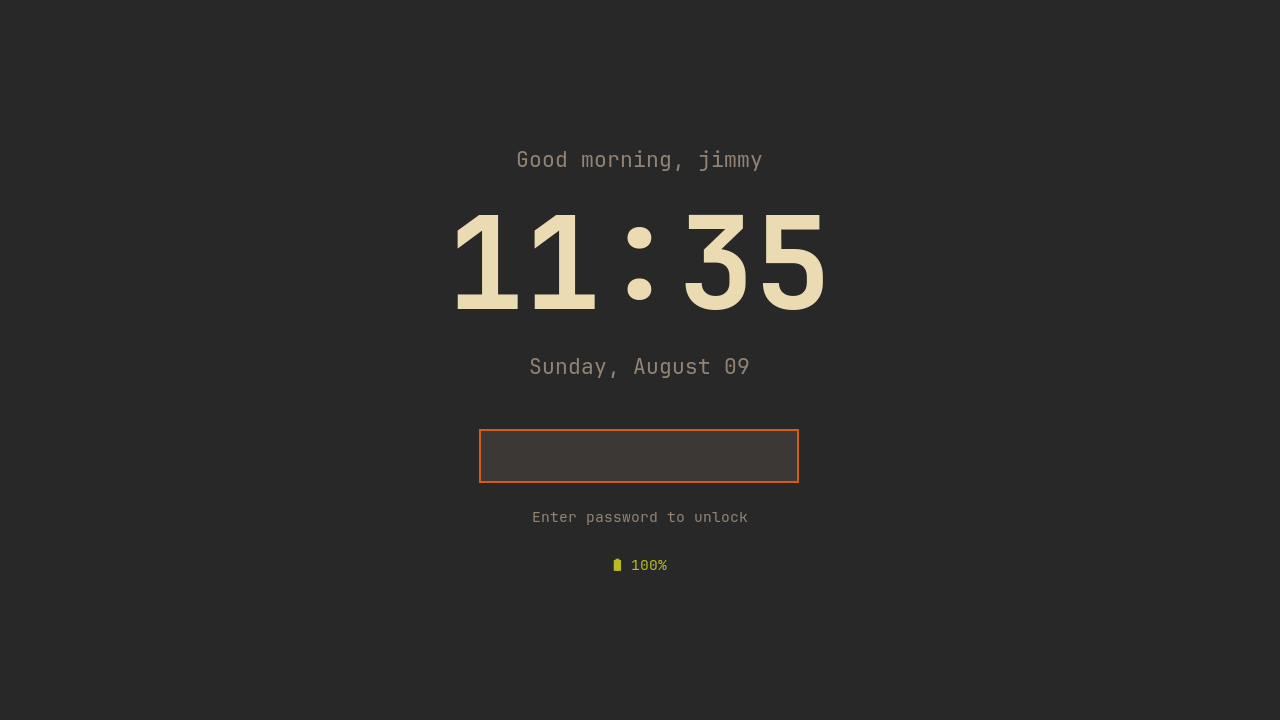
Then it builds the widgets top to bottom: a time-of-day greeting ("Good morning, jimmy", computed from os.date("%H") and $USER), a very large clock, a date line, the password dots, a Caps Lock warning, a status line, and a battery readout. The clock is the visual anchor:
-- lockscreen/init.lua
  clock = wibox.widget({
    format = "%H:%M",
    font = beautiful.font_size(96, "Bold"),
    halign = "center",
    widget = wibox.widget.textclock,
  })
The password display is a textbox that never shows the password, only one filled dot per typed character, wrapped in a background container with a two-pixel primary_color border made from a margin container. All of it stacks in a wibox.layout.fixed.vertical inside a wibox.container.place, centered both ways on the screen. The layout is 100 lines of nesting you have read five chapters' worth of by now; browse the branch for the full tree.
One structural detail worth noticing: every widget reference (greeting, clock, password_dots, status_text, ...) is a module-local variable assigned inside build_ui(), because the input loop and the signal handlers need to poke at them later. The status line's container is fished out of the finished layout by id, the same get_children_by_id trick the dashboard used:
-- lockscreen/init.lua
  -- Store status container for color changes
  status_container = layout:get_children_by_id("status_container")[1]
One Prompt, Many Covers
A lock screen has to cover every monitor, but only one of them needs a password prompt. The module keeps a surfaces table keyed by screen: the primary screen gets the interactive surface, every other screen gets a plain cover. Both are raw wibox objects, not awful.popups, because we want exact screen-geometry placement and nothing else:
-- lockscreen/init.lua
-- Create the interactive wibox for the password screen
local function create_interactive(s)
  local wb = wibox({
    visible = false,
    ontop = true,
    bg = colors.bg,
    x = s.geometry.x,
    y = s.geometry.y,
    width = s.geometry.width,
    height = s.geometry.height,
    widget = layout,
  })
  awesome.set_lock_surface(wb)
  return wb
end
create_cover(s) is the same wibox minus the widget, registered with awesome.add_lock_cover(wb) instead. Note both are created with visible = false: the surfaces exist from startup, registered with the compositor and waiting, and locking merely flips their visibility. M.init() builds them all and connects every signal the module lives on:
-- lockscreen/init.lua
function M.init()
  build_ui()

  -- Build surfaces for all screens
  interactive_screen = screen.primary
  for s in screen do
    if s == interactive_screen then
      surfaces[s] = create_interactive(s)
    else
      surfaces[s] = create_cover(s)
    end
  end

  screen.connect_signal("added", on_screen_added)
  screen.connect_signal("removed", on_screen_removed)
  awesome.connect_signal("lock::activate", on_lock_activate)
  awesome.connect_signal("lock::deactivate", on_lock_deactivate)
  awesome.connect_signal("lock::auth_failed", on_auth_failed)
end
The two screen signals handle monitor hotplug, which matters more here than anywhere else in the config: an uncovered monitor while locked is a hole in the lock. A screen that appears gets a cover immediately, visible at once if awesome.locked. A screen that disappears is worse when it is the one holding the prompt, so on_screen_removed migrates it:
-- lockscreen/init.lua
  -- Interactive screen removed during lock - migrate
  awesome.clear_lock_surface()
  surfaces[s] = nil
  interactive_screen = screen.primary or screen[1]
  if interactive_screen then
    if surfaces[interactive_screen] then
      -- Convert existing cover to interactive
      awesome.remove_lock_cover(surfaces[interactive_screen])
    end
    surfaces[interactive_screen] = create_interactive(interactive_screen)
    if awesome.locked then
      surfaces[interactive_screen].visible = true
    end
  end
Unplug the laptop's external monitor mid-lock and the prompt reappears on the built-in panel instead of stranding you on a screen that no longer exists.
Activation
When SomeWM locks the session (whoever called awesome.lock()), the lock::activate handler resets input state, refreshes everything that may have gone stale since init, shows every surface, and takes the keyboard:
-- lockscreen/init.lua
local function on_lock_activate()
  password = ""
  password_dots.text = ""
  caps_warning.markup = ""

  -- Update greeting (in case time changed)
  greeting.text = get_greeting()

  -- Update battery and caps lock state
  update_battery()
  read_caps_lock_state()

  show_attempts_status()
  set_visibility_all(true)
  start_grabber()
end
lock::deactivate is the mirror image: hide all surfaces, clear the password, stop the grabber.
The Input Loop
The keygrabber is the same tool the exit screen and launcher use, configured for total capture:
-- lockscreen/init.lua
local function start_grabber()
  grab = awful.keygrabber({
    autostart = true,
    stop_key = nil,
    mask_modkeys = true,
    keypressed_callback = function(_, _, key, _)
      handle_key(key)
    end,
  })
end
stop_key = nil means no key releases the grab: on a lock screen, Escape clears the input, it must not hand the keyboard back. mask_modkeys stops bare modifier presses (Shift, Ctrl) from reaching the callback as keys.
Everything interesting is in handle_key, one branch per kind of key. The default branch, appending a character to the password, has to answer a question the other modals never faced: what counts as a character? The keygrabber hands us key names as strings, and "a", "é", and "Shift_R" are all strings. LuaJIT has no utf8 library, so the module carries a ten-line codepoint counter (count the bytes that are not UTF-8 continuation bytes):
-- lockscreen/init.lua
-- Count UTF-8 codepoints in a string (LuaJIT lacks the utf8 library)
local function utf8_len(s)
  local count = 0
  for i = 1, #s do
    local b = s:byte(i)
    if b < 0x80 or b >= 0xC0 then
      count = count + 1
    end
  end
  return count
end
With that, the append branch accepts exactly one codepoint at a time, so "é" types one dot and "Shift_R" types nothing:
-- lockscreen/init.lua
  elseif #key >= 1 and key:byte(1) >= 0x20 then
    if #password > 256 then
      return
    end
    -- Only append single-codepoint keys; reject named keys like "Shift_R"
    if utf8_len(key) > 1 then
      return
    end
    password = password .. key
    password_dots.text = string.rep("\xE2\x97\x8F", utf8_len(password))
  end
The dots string is one ● (that "\xE2\x97\x8F" byte sequence) per codepoint, never per byte, which is also why BackSpace cannot just chop the last byte off. A multi-byte character deleted one byte at a time would leave the password holding invalid UTF-8. So BackSpace walks backwards over continuation bytes until it reaches the start of the final codepoint, then cuts there:
-- lockscreen/init.lua
  elseif key == "BackSpace" then
    if #password > 0 then
      -- Walk backwards past UTF-8 continuation bytes
      local i = #password
      while i > 1 and password:byte(i) >= 0x80 and password:byte(i) < 0xC0 do
        i = i - 1
      end
      password = password:sub(1, i - 1)
    end
Escape resets password and the dots to empty. Return is where authentication happens:
-- lockscreen/init.lua
  elseif key == "Return" then
    set_status("Authenticating...", false)

    gears.timer.start_new(0.05, function()
      if awesome.authenticate(password) then
        failed_attempts = 0 -- Reset on success
        awesome.unlock()
      else
        -- Just reset input; lock::auth_failed handles the rest
        password = ""
        password_dots.text = ""
      end
      return false
    end)
The 50ms timer looks odd until you remember that awesome.authenticate is synchronous PAM: it can block for a beat while PAM does its work. Calling it directly from the key handler would freeze the UI before "Authenticating..." ever painted. Deferring by one short timer tick lets the status line render first, then blocks. On success we reset the counter and call awesome.unlock(), which fires lock::deactivate and tears everything down.
Failure Is a Signal, Not a Return Value
Look again at that Return branch: on failure it clears the input and does nothing else. No counter increment, no error message. That is deliberate, and the comment above the failure handler says why:
-- lockscreen/init.lua
-- Sole owner of the failed_attempts counter
local function on_auth_failed()
  failed_attempts = failed_attempts + 1
  local plural = failed_attempts == 1 and "attempt" or "attempts"
  set_status(string.format("Authentication failed (%d %s)", failed_attempts, plural), true)
  password = ""
  password_dots.text = ""

  gears.timer.start_new(2, function()
    if awesome.locked then
      show_attempts_status()
    end
    return false
  end)
end
A rejected awesome.authenticate call also makes SomeWM emit lock::auth_failed. If the Return branch incremented the counter and this handler did, every failure would count twice. So the signal handler is the sole owner of failed_attempts, and the key handler stays out of it entirely. This is the same discipline the volume widget taught back in the widget chapters, applied to state instead of rendering: when an event arrives on two paths, exactly one path gets to act on it.
The handler paints "Authentication failed (2 attempts)" in red, then a two-second timer settles the status line back to the resting text via show_attempts_status(), which shows either "Enter password to unlock" or a persistent red "N failed attempts" if the counter is nonzero. The if awesome.locked guard keeps a late timer from touching widgets after a successful unlock, and because the counter only resets on success, the count survives across lock sessions until you type the right password.
Caps Lock Without a Shell Per Keystroke
Nothing is more maddening than a rejected password caused by Caps Lock, so the lock screen warns about it. The obvious implementation asks the kernel on every keypress; the module refuses, and its comment is the design note:
-- lockscreen/init.lua
-- Read the kernel LED state once (when the lock activates); afterwards the
-- keygrabber tracks Caps_Lock presses itself instead of spawning a shell
-- process for every character typed.
local function read_caps_lock_state()
The function shells out once per lock activation, reading /sys/class/leds/*capslock*/brightness (the glob covers the per-keyboard naming differences) with an echo "0" fallback. From then on the truth is maintained for free inside handle_key: we already see every keypress, so Caps_Lock presses just toggle the flag:
-- lockscreen/init.lua
  if key == "Caps_Lock" then
    caps_lock_on = not caps_lock_on
    update_caps_warning()
One process at activation, zero processes while typing, and the orange "⚠ Caps Lock is ON" line under the input box stays truthful.
Battery, One More Time
The battery line at the bottom of the prompt writes zero new battery code. Chapter 3 built widgets/battery.lua around a shared API, the dashboard profile consumed it, and the lock screen is the third consumer:
-- lockscreen/init.lua
  battery.get_status(function(status)
    if not status.percentage then
      battery_widget.visible = false
      return
    end
    battery_widget.visible = true
    battery_widget.markup = string.format(
      '<span foreground="%s">%s %d%%</span>',
      battery.level_color(status.percentage),
      battery.level_icon(status.percentage, status.charging),
      status.percentage
    )
  end)
Same reading, same thresholds, same glyphs as the wibar and the dashboard, so all three surfaces always agree about the battery. On a desktop or in the nested test session percentage is nil and the line simply hides.
The Last Piece: Wiring Up Lock
There is a reason the exit screen shipped in chapter 7 without a Lock option, and it is not that we forgot. awesome.lock() with no lock surface registered is a silent no-op: SomeWM refuses to lock a session it has nothing to cover it with. A Lock button before this chapter would have been a button that does nothing. Now that M.init() registers surfaces at startup, both entry points gain their action in this same commit. The exit screen gets a first option:
-- exitscreen/init.lua
{
name = "Lock",
icon = "",
key = "l",
command = function()
awesome.lock()
end,
},
And the main menu gets a Lock item above Logout, plus its handler branch:
-- widgets/mainmenu.lua
{ type = "item", icon = "", label = "Lock", action = "lock" },
-- widgets/mainmenu.lua
  elseif item.action == "lock" then
    awesome.lock()
Press Super+Shift+E, hit l, and the session locks: covers on every monitor, the clock and greeting on the primary, dots as you type, PAM checking the real password. That closes the loop on the whole series. Every pixel of this desktop, the bar, the notifications, the launcher, the dashboard, and now the thing standing between your session and the world, is Lua you wrote and can read. The 12-lockscreen branch is identical to main: this is the finished config.
Try It
- A solid
bgcolor is the classic lock screen, but nothing stops the lock surface from being prettier. Give the interactive wibox your wallpaper as a background (awibox.container.backgroundtakesbgimage), or pre-blur a copy of the wallpaper with ImageMagick at init time and use that. - If you type in more than one keyboard layout, a wrong-layout password fails just as silently as Caps Lock. Add a small layout indicator near the input box using
awful.widget.keyboardlayoutor thexkbsignals.
Checkpoint
Your config now matches the 12-lockscreen branch, and with it, main.
git checkout 12-lockscreen
somewm-client test start --config "$PWD/rc.lua" --name afs
Compare your work: git diff 11-dashboard 12-lockscreen