Wibar: Our Own Bar
You will learn
- Replace the stock top bar with a
wibar.luafactory that builds one bar per screen - Define workspaces once as a table of named tags with icons, created per screen
- Center the clock for real with nested align layouts and
expand = "none" - Build a custom taglist with
widget_templateand state-based icon recoloring - Style the systray, status widgets, and layoutbox with nested containers
Where We Are
In chapter 03 we built our widget library: the wrappers helpers, plus clock, volume, battery, and WiFi widgets, each polling the system and updating itself through signals. They work, but they are still crammed into the right side of the stock bar, next to the default text taglist and tasklist. This chapter throws the stock bar away and builds our own. To catch up: git checkout 03-widgets.
One Bar Per Screen
A bar in AwesomeWM is a wibar: a wibox (Awesome's basic on-screen box that can hold any widget tree) that docks to a screen edge and reserves space, so tiled windows do not cover it. The important constraint: every screen needs its own wibar instance. Our clock module could return a single widget because one clock can be drawn wherever it is placed, but a bar is anchored to a specific screen. That means wibar.lua cannot export a widget. It exports a factory: a function that takes a screen and returns a bar for it.
-- wibar.lua
local awful = require("awful")
local beautiful = require("beautiful")
local wibox = require("wibox")
local widgets = require("widgets")
local dpi = require("beautiful.xresources").apply_dpi

return function(s)
  local wibar = awful.wibar({
    position = "top",
    screen = s,
    widget = {
      -- ...the three sections, covered below...
      layout = wibox.layout.align.horizontal,
    },
  })
  return wibar
end
Who calls the factory? The same place the stock config built its bar: the request::desktop_decoration signal. Awesome emits it once per screen when that screen is ready to receive decorations like bars, and again for any monitor you plug in later, so everything inside the handler is automatically per-screen. In rc.lua, the entire stock bar block, the default taglist, the awful.wibar call with its inline widget tree, the keyboard layout indicator, and the stock textclock all get deleted and replaced with one line:
-- rc.lua
  s.mywibox = wibar(s)
end)
with a matching local wibar = require("wibar") near the top of the file. One thing quietly leaves the bar in this commit: the tasklist (the strip of open-window buttons) is gone; we will handle window switching properly with a dedicated switcher in chapter 09. The promptbox that Mod4+r and Mod4+x use survives the move: it is still created in rc.lua, and our bar gives it a home in the left section, because without one those prompts would still run, but type into an invisible textbox. We are trading a little stock functionality for a bar that is entirely ours.
Workspaces as Data
The stock config created nine numbered tags inline. A tag is Awesome's workspace: clients belong to one or more tags, and a screen shows whichever tags are selected. Instead of anonymous numbers, we define our workspaces once, as data, at the top of rc.lua:
-- rc.lua
-- The workspaces, defined once. Each tag carries the icon the taglist renders
-- for it (files in icons/); the demo rules further down route apps to tags by
-- these names, so rename in both places or a rule will quietly stop matching.
local tags = {
  { name = "code", icon = "terminal.svg" },
  { name = "web", icon = "chrome.svg" },
  { name = "chat", icon = "slack.svg" },
  { name = "db", icon = "server.svg" },
  { name = "games", icon = "play.svg" },
}
Each entry is a name plus an SVG from the repo's icons/ directory. The names matter beyond labeling: in chapter 05 we write client rules that say "browsers go to web, chat apps go to chat", matching on these exact strings. That is why the comment warns you to rename in both places.
Inside the request::desktop_decoration handler, the table becomes real tags:
-- rc.lua
screen.connect_signal("request::desktop_decoration", function(s)
  -- Create this screen's tags from the table defined at the top
  for i, t in ipairs(tags) do
    awful.tag.add(t.name, {
      screen = s,
      layout = awful.layout.layouts[1],
      selected = i == 1,
      icon_name = t.icon,
    })
  end
awful.tag.add creates one tag with a property table, unlike the stock awful.tag(...) call that batch-creates from a list of names. The interesting property is icon_name: it is not a built-in tag property. Tag objects accept arbitrary extra properties and simply store them, so the tag itself carries its icon filename around, and anything holding a reference to the tag can read tag.icon_name back. Our taglist will do exactly that. selected = i == 1 makes the first tag the visible one on startup.
This commit also deletes the stock block that saved and restored tags when a monitor was unplugged and reconnected. With workspaces defined as data, tags are simply rebuilt from the table whenever a screen appears, which is less code and the same end state.
The Bar Skeleton
Notice what wibar.lua does not set: no height, no margins, no colors. awful.wibar falls back to beautiful.wibar_* theme variables for all of them, and we defined those back in chapter 01:
-- theme/theme.lua
theme.wibar_height = theme.useless_gap * 5
theme.wibar_margins = {
  top = theme.useless_gap * 2,
  left = theme.useless_gap * 2,
  right = theme.useless_gap * 2,
}
With useless_gap at dpi(8), the bar is 40 scaled pixels tall and floats away from the top and side edges by 16, matching the gaps between windows. There is no bottom margin: the space between the bar and the first row of windows already comes from the tiling gaps. Because everything derives from useless_gap, changing one theme number rescales the whole layout, and wibar.lua keeps leaning on the theme throughout, sizing separators and icons as fractions of beautiful.wibar_height.
The root of the widget tree is a wibox.layout.align.horizontal. An align layout has exactly three slots: the first and third are given their natural size and pinned to the ends, and the middle slot is handed everything left over. That gives us the classic bar anatomy: a left group, a center group, and a right group.
A Clock in the Actual Middle
Here is the middle slot:
-- wibar.lua
{
  nil,
  widgets.clock,
  nil,
  expand = "none",
  layout = wibox.layout.align.horizontal,
},
An align layout inside an align layout, with both side slots empty. This looks redundant until you know how align distributes space. If we dropped widgets.clock straight into the outer middle slot, the align layout would hand it the entire leftover span between the taglist and the systray, and the clock, a fixed horizontal row of imagebox and textbox, would draw at the left edge of that span, hugging the taglist. The middle slot of an align layout is not centered by default; it is stretched.
expand = "none" changes the algorithm: the layout measures its middle widget at its natural size and places it at the exact center of whatever space the layout received, splitting the remainder equally on both sides. So the inner align gets the full run between the left and right groups, and centers the clock within it. That is the whole trick: nil, widget, nil, expand = "none" is the idiomatic "actually center this" pattern in Awesome, and you will reach for it constantly.
The expand = "none" doing the work is the one inside the middle slot's layout, not anything on the wibar itself. If you ever want the clock pinned to the exact screen center instead of the center of the gap, move expand = "none" onto the root align layout, at the cost of capping both side groups to equal halves of the bar.
The Taglist
The left slot is short:
-- wibar.lua
{
  widgets.wrappers.vertical_separator(beautiful.wibar_height * 0.5),
  widgets.taglist(s),
  widgets.wrappers.vertical_separator(beautiful.wibar_height * 0.5),
  -- The prompt for Mod+R (run) and Mod+X (Lua): without a home in the
  -- bar, prompts still run but type into an invisible textbox
  s.mypromptbox,
  layout = wibox.layout.fixed.horizontal,
},
The separators from our wrappers module are just empty background-colored blocks, used here as padding on either side of the taglist. After them sits s.mypromptbox, the promptbox rc.lua creates for the Mod4+r and Mod4+x prompts; it renders as nothing until a prompt is active, but as the comment says, it needs a spot in the bar to be visible at all. widgets.taglist(s) is new, and like the wibar it is a factory, because a taglist shows the tags of one particular screen.
widgets/taglist.lua wraps awful.widget.taglist, Awesome's built-in widget that maintains one entry per tag and re-renders entries when tag state changes. First, the mouse bindings:
-- widgets/taglist.lua
  local taglist_buttons = {
    awful.button({}, 1, function(t)
      t:view_only()
    end),
    awful.button({ modkey }, 1, function(t)
      if client.focus then
        client.focus:move_to_tag(t)
      end
    end),
    awful.button({}, 3, awful.tag.viewtoggle),
    awful.button({ modkey }, 3, function(t)
      if client.focus then
        client.focus:toggle_tag(t)
      end
    end),
    awful.button({}, 4, function(t)
      awful.tag.viewprev(t.screen)
    end),
    awful.button({}, 5, function(t)
      awful.tag.viewnext(t.screen)
    end),
  }
awful.button is the mouse sibling of the awful.key bindings from chapter 02: modifiers, a button number, and a callback, which the taglist calls with the clicked tag. Left-click views a tag exclusively, Mod4+left-click sends the focused client there, right-click toggles a tag into the current view (so you can see two tags at once), Mod4+right-click toggles the focused client's membership on that tag, and the scroll wheel (buttons 4 and 5) cycles through tags. Note the module reads the modkey global that rc.lua defines, same as keybindings.lua does.
By default awful.widget.taglist renders each tag as its name in a text box. We replace that with a widget_template: a declarative widget tree that the taglist stamps out once per tag.
-- widgets/taglist.lua
    widget_template = {
      {
        id = "indicator",
        wibox.widget.base.make_widget(),
        forced_height = 2,
        bg = beautiful.bg_normal,
        widget = wibox.container.background,
      },
      nil,
      {
        {
          id = "icon_role",
          widget = wibox.widget.imagebox,
        },
        margins = beautiful.wibar_height * 0.25,
        widget = wibox.container.margin,
      },
      layout = wibox.layout.fixed.vertical,
      create_callback = update_tag,
      update_callback = update_tag,
    },
Each tag becomes a vertical stack: a 2-pixel background container along the top edge (the selection indicator; wibox.widget.base.make_widget() is just an empty placeholder widget for the container to paint behind) and the tag's icon in a margin container below it. The id fields matter: create_callback fires once when a tag's copy of the template is built, and update_callback fires every time that tag's state changes, selected, urgent, clients added or removed. Both point at the same function, which finds the named pieces by id and styles them:
-- widgets/taglist.lua
  local update_tag = function(widget, tag, index, taglist)
    local w = widget:get_children_by_id("icon_role")[1]
    local indicator = widget:get_children_by_id("indicator")[1]
    -- Tags carry their icon (set in rc.lua); anything without one gets a
    -- generic marker instead of crashing the taglist
    local icon_name = tag.icon_name or "grid.svg"
    local color

    if tag.selected then
      color = beautiful.primary_color
      indicator.bg = beautiful.primary_color
    elseif tag.urgent then
      color = beautiful.bg_urgent
      indicator.bg = beautiful.bg_normal
    elseif #tag:clients() > 0 then
      color = beautiful.active_hover
      indicator.bg = beautiful.bg_normal
    else
      color = beautiful.fg_normal
      indicator.bg = beautiful.bg_normal
    end

    w.image = gears.color.recolor_image(beautiful.icon_dir .. "/" .. icon_name, color)
  end
Four states, checked in priority order. The selected tag gets the theme's primary_color icon plus a lit indicator strip; an urgent tag (a client is demanding attention) gets the urgent color; an occupied tag (#tag:clients() > 0) gets a softer highlight; an empty tag fades to the normal foreground. The icon itself comes straight off the tag via the icon_name property we stored in rc.lua, with grid.svg as the fallback so a tag created without an icon renders a generic marker instead of crashing the taglist. gears.color.recolor_image is the same trick our wrappers use: it repaints a monochrome SVG in whatever color we ask, so one icon file serves every state.
The taglist is registered in widgets/init.lua alongside the others, one added line. Because state styling runs through update_callback, the bar reacts live: open a client on an empty tag and its icon brightens, switch tags and the indicator strip follows you.
The Right Side
The right slot is a fixed row of four things: the systray, the status widgets, the layoutbox, and separators between them. The systray first:
-- wibar.lua
-- Styled systray container with subtle inset appearance
{
  {
    {
      wibox.widget.systray(),
      margins = dpi(4),
      widget = wibox.container.margin,
    },
    bg = beautiful.bg_focus,
    shape = beautiful.shape_small,
    widget = wibox.container.background,
  },
  left = dpi(8),
  right = dpi(8),
  top = dpi(4),
  bottom = dpi(4),
  widget = wibox.container.margin,
},
wibox.widget.systray() is the system tray, the strip where apps like network applets park their icons; there is only ever one per session. Raw, it sits flat on the bar, so we dress it up with nested containers, read inside-out: a margin gives the icons breathing room, a background container paints a bg_focus rounded chip behind them (using the theme's shape_small from chapter 01), and an outer margin insets the whole chip from the bar's edges. This margin-background-margin sandwich is the standard recipe for a "pill" or "inset" look and we will reuse it often.
Next, the three status widgets from chapter 03:
-- wibar.lua
{
  widgets.volume,
  widgets.wifi,
  widgets.battery.widget,
  spacing = dpi(10),
  layout = wibox.layout.fixed.horizontal,
},
They get their own sub-layout with spacing = dpi(10), and the reason is worth spelling out. All three are built with the icon_with_text wrapper, which puts no gap after its text label, so three of them in a row run together: the volume percentage collides with the WiFi icon. We could pad inside the wrapper, but every other widget in the bar (like the clock) uses the same wrapper and would inherit padding it does not want. Giving this group its own spacing fixes the collision exactly where it occurs and nowhere else. That is a good general instinct: fix layout problems in the layout, not in the shared component.
Finally the layoutbox, Awesome's built-in indicator showing the current tiling layout (its click-to-cycle buttons are still attached in rc.lua):
-- wibar.lua
{
  {
    s.mylayoutbox,
    forced_height = beautiful.wibar_height * 0.6,
    forced_width = beautiful.wibar_height * 0.6,
    widget = wibox.container.constraint,
  },
  halign = "center",
  valign = "center",
  widget = wibox.container.place,
},
Left alone, the layoutbox icon would scale to the full bar height and look oversized. A constraint container caps it at 60% of the bar height, and a place container centers the now-smaller box within the row. Between these three groups sit vertical_separator(beautiful.wibar_height * 0.5) blocks, invisible spacers half the bar's height wide.
That is the whole file: 76 lines, and every pixel of the bar is now something we wrote. Restart with Mod4+Ctrl+R and you get a floating bar with five icon tags (and the invisible promptbox) on the left, a centered clock, and a chip-styled tray on the right.
Try It
- Move
widgets.clockout of the middle slot and into the right-hand group, next to the status widgets. What happens to the empty middle? Then try leaving a different widget centered instead, using the samenil, widget, nil, expand = "none"pattern. - Add a sixth workspace to the
tagstable with an icon of your choice: pick any SVG fromicons/(or drop in your own monochrome SVG) and give the tag a name. Check that the taglist renders it, then click and scroll to it.
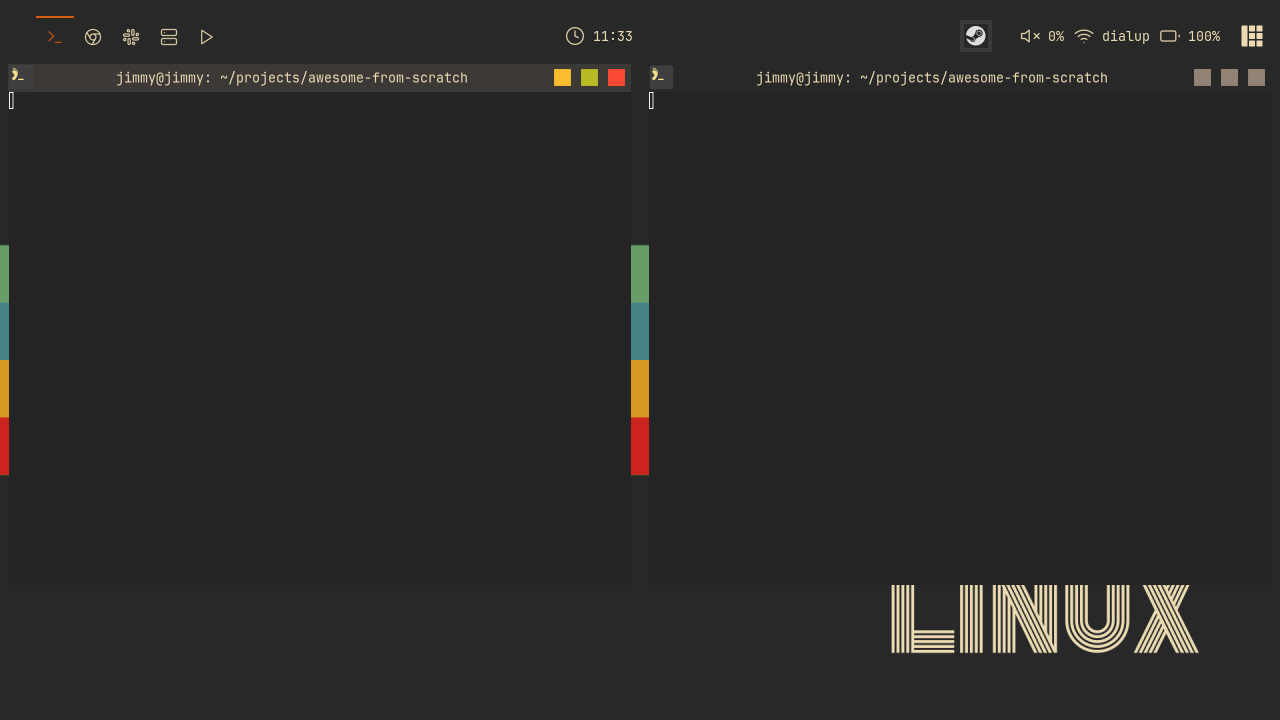
Checkpoint
The finished code for this chapter is on the 04-wibar branch:
git checkout 04-wibar
somewm-client test start --config "$PWD/rc.lua" --name afs
Compare your work: git diff 03-widgets 04-wibar