Widgets: Wrappers, Clock, Volume, Battery, WiFi
You will learn
- How the wibox widget tree works: leaf widgets, containers, and layouts composed declaratively
- How to build a small vocabulary of wrapper helpers so every widget looks like it belongs to the same bar
- How to poll system state without freezing the compositor, using
gears.timerandawful.spawn.easy_async_with_shell - How custom signals let keybindings and widgets talk to each other without knowing about each other
- Why the battery widget exports an API instead of just a widget
Where We Are
In chapter 02 we rebuilt the keybindings as a table you can read at a glance, including media keys that adjust the volume with wpctl. The bar at the top of the screen is still the stock one from the default config, with the stock text clock. In this chapter we build four real widgets - clock, volume, battery, and WiFi - plus the shared helpers they are made of, and drop them into that stock bar. The bar itself gets rebuilt properly in the next chapter; today is about the widgets.
To catch up: git checkout 02-keybindings.
The Widget Tree
Everything you see in an AwesomeWM bar, popup, or notification is built from widgets, and every widget is one of three kinds:
- Leaf widgets draw actual content.
wibox.widget.textboxdraws text,wibox.widget.imageboxdraws an image. They have no children. - Containers wrap exactly one child and change how it is drawn:
wibox.container.marginadds space around it,wibox.container.backgroundpaints a color behind it and can clip it to a shape. - Layouts arrange multiple children:
wibox.layout.fixed.horizontalplaces them in a row, each taking its natural width.
You compose these into a tree, and you do it declaratively: instead of constructing objects and calling add() on them, you pass wibox.widget() a nested table describing the whole tree. Each table level names its own type with a widget = ... key (for leaves and containers) or a layout = ... key (for layouts), and any array-part entries become children. Every other key is set as a property on that widget.
That is the entire model. Once it clicks, every UI in this series, from the bar to the lockscreen, is just a differently shaped tree.
Shared Vocabulary: wrappers.lua
Four widgets that each hand-roll their own icon-plus-text markup would drift apart within a week. So before writing any widget, we write the vocabulary they will share: widgets/wrappers.lua.
The first helper turns an SVG file into an icon that matches the theme:
-- widgets/wrappers.lua
M.image_widget = function(image, color, hover_color)
  local widget = wibox.widget({
    image = recolor(beautiful.icon_dir .. image, color),
    widget = wibox.widget.imagebox,
    halign = "center",
    valign = "center",
  })
  widget:connect_signal("mouse::enter", function(c)
    c.image = recolor(beautiful.icon_dir .. image, hover_color or color)
  end)
  widget:connect_signal("mouse::leave", function(c)
    c.image = recolor(beautiful.icon_dir .. image, color)
  end)
  return widget
end
Two new things here. First, recolor is gears.color.recolor_image: it takes an image path and a color and returns the image tinted in that color. This branch adds a folder of single-color SVGs under icons/, and because we recolor them at load time with theme colors, the same icon set works with any color scheme from chapter 01. No hand-editing SVG fill attributes.
Second, this is your first exposure to signals. A signal is AwesomeWM's event mechanism: objects emit named events, and you attach handlers with connect_signal. Widgets emit mouse::enter and mouse::leave as the pointer crosses them, and the handler receives the widget itself as its argument (c here). So these six lines give every icon in the config a hover effect: swap to the hover color on enter, back on leave. We will meet signals again in a much bigger role later in this chapter.
The second helper is the shape almost every bar widget takes, an icon with a text label next to it:
-- widgets/wrappers.lua
M.icon_with_text = function(w, text)
  return wibox.widget({
    {
      w,
      margins = {
        top = beautiful.wibar_height / 4,
        bottom = beautiful.wibar_height / 4,
      },
      widget = wibox.container.margin,
    },
    {
      id = "text",
      text = text,
      widget = wibox.widget.textbox,
    },
    layout = wibox.layout.fixed.horizontal,
  })
end
Read the tree from the outside in: a horizontal layout with two children. The first child is a margin container wrapping the icon w, padding it top and bottom so it does not touch the bar edges. The second is a textbox leaf.
The textbox carries id = "text", and that id matters. A declarative tree gives you back one widget object, the root; you never held a variable for the textbox buried inside it. get_children_by_id("text") searches the tree for every widget with that id and returns them as a list, so widget:get_children_by_id("text")[1] is how a widget reaches back into its own markup to update the label later. This is the standard AwesomeWM pattern for mutable parts of a declarative tree, and every widget in this chapter uses it.
The last helper is a spacer for the bar:
-- widgets/wrappers.lua
M.vertical_separator = function(width)
  return wibox.widget({
    bg = beautiful.bg_normal,
    forced_width = width,
    widget = wibox.container.background,
  })
end
A background container with no child is just a colored block; forced_width gives it a size. There is also a square_icon helper in the file that puts an icon on a colored square background - the widgets keep a commented-out line showing how to use it, so you can switch styles with a two-line change. Browse the branch for that one.
The Clock: Timers
The clock is the smallest possible real widget, so it makes a clean first assembly of the wrappers:
-- widgets/clock.lua
local clock = wrappers.image_widget("/clock.svg", beautiful.fg_normal)
local clock_widget = wrappers.icon_with_text(clock)

local set_clock = function()
  local time = " " .. os.date("%I:%M")
  local tbox = clock_widget:get_children_by_id("text")[1]
  tbox.text = time
end
Build an icon, wrap it with a textbox, and write a function that fetches the current time and pushes it into the textbox through its id. What is missing is something to call set_clock repeatedly, and that is gears.timer:
-- widgets/clock.lua
gears.timer({
  timeout = 5,
  autostart = true,
  call_now = true,
  callback = function()
    set_clock()
  end,
})

return clock_widget
A timer runs its callback every timeout seconds. autostart = true means it starts ticking as soon as it is created, and call_now = true runs the callback once immediately, so the bar never shows an empty clock while waiting five seconds for the first tick. Those two flags together are the standard shape for "poll and show" widgets; battery and WiFi below use exactly the same construction. The module returns the assembled widget, so require("widgets.clock") gives the bar something it can place directly.
Five seconds is generous for a clock that only shows hours and minutes, but an os.date call costs nothing, and the short timeout means the display is never more than a few seconds stale after a suspend and resume.
Volume: Async Reads and Signals
The volume widget is where the real machinery shows up. Unlike the clock, its data lives outside the process: we have to ask the audio server. That means running a shell command, and how you run it matters enormously.
Your config runs inside the window manager, and on SomeWM the window manager is the Wayland compositor itself. A blocking call like io.popen("wpctl ..."):read() would freeze the entire session - every window, every frame, every keypress - until the command returns. So we never block. awful.spawn.easy_async_with_shell(cmd, callback) spawns the command, returns immediately, and calls your callback with the output once the command finishes.
First, the command. Following the fallback pattern this config uses for every external tool, it works with whichever mixer the machine has:
-- widgets/volume.lua
local function get_volume_cmd()
  return [[
    if command -v pamixer >/dev/null 2>&1; then
      pamixer --get-volume
    elif command -v wpctl >/dev/null 2>&1; then
      wpctl get-volume @DEFAULT_AUDIO_SINK@ | awk '{print int($2 * 100)}'
    else
      echo "0"
    fi
  ]]
end
pamixer prints a bare integer; wpctl prints something like Volume: 0.45, so the awk normalizes it to the same bare integer. Either way the Lua side sees one number and never cares which tool produced it. A matching get_mute_cmd() in the file does the same for mute state.
The widget itself is the familiar wrapper stack plus one new piece, a tooltip:
-- widgets/volume.lua
volume_widget.tooltip = awful.tooltip({
  objects = { volume_widget },
})
awful.tooltip creates a small hover popup and attaches it to every widget in objects; setting its text property later changes what it shows. Now the update function:
-- widgets/volume.lua
local function update_volume()
  awful.spawn.easy_async_with_shell(get_volume_cmd(), function(vol)
    -- INFO: This stdout contains a \n character that messes up how the tooltip looks.
    local vol_string = string.gsub(vol, "\n", "")

    -- If there is no audio sink at all (a VM, a nested test instance, a machine with
    -- PipeWire down) the command above prints nothing, and tonumber gives back nil.
    -- Every comparison below would then throw, so pin it to a number here.
    local volume_level = tonumber(vol_string) or 0

    local tbox = volume_widget:get_children_by_id("text")[1]
    volume_widget.tooltip.text = " " .. volume_level .. "%"
    tbox.text = " " .. volume_level .. "%"
Both comments are hard-won: shell output arrives with a trailing newline, and on a machine with no audio sink at all (including the nested test session you have been using at every checkpoint) the command prints nothing, so we pin the result to a number before comparing it to anything. The callback then runs get_mute_cmd() as a second nested async call and picks one of four SVGs - muted, low, medium, high - based on the result. It is the same recolor call as in the wrappers, just choosing the file at runtime; browse the branch for the icon thresholds.
The Nervous System
Here is the interesting question: when do we call update_volume()? A timer would work, but volume only changes when you change it, and you change it through the media keys we bound in chapter 02. Polling every few seconds means the bar lags behind your keypress by up to that interval. What we want is for the keybinding to tell the widget "something changed".
But the keybinding table should not require the volume widget and call into it; that couples two modules that have no business knowing each other. Instead, chapter 02's media helpers already do this:
-- keybindings.lua
local media_helpers = {
  raise_volume = function()
    awful.spawn("wpctl set-volume @DEFAULT_AUDIO_SINK@ 5%+")
    awesome.emit_signal("volume::update")
  end,
awesome.emit_signal broadcasts a custom signal on the global awesome object. "volume::update" is not a name AwesomeWM knows; we made it up. The noun::verb naming is just convention. Notice the emission carries no payload: it is a bare announcement, "volume changed, deal with it", not "volume is now 45". The widget owns the job of finding out what the new value is.
On the other end, the widget subscribes:
-- widgets/volume.lua
update_volume()

awesome.connect_signal("volume::update", function()
  update_volume()
end)
One direct call to paint the initial state, then a listener that re-reads on every announcement. Press the volume key and the chain runs: keybinding spawns wpctl, emits the signal, the widget hears it, asynchronously reads the actual level, and updates the text, icon, and tooltip. No polling, no lag, no coupling.
This announce-and-reread pattern is the nervous system of the whole config. The battery widget below broadcasts a battery::update signal from its poll, and later chapters emit notification::unread_count and dashboard::visible the same way; anything that cares just subscribes. When you wonder how two far-apart modules coordinate, the answer is almost always a signal.
Battery: A Widget With an API
The battery module breaks the shape of the previous two on purpose. Clock and volume return a widget; battery returns a table:
-- widgets/battery.lua
-- The one battery implementation in this config. The wibar shows M.widget;
-- the dashboard profile and the lockscreen call M.get_status() and share the
-- same thresholds through M.level_color() / M.level_icon(), so all three
-- always agree about what the battery is doing.
local M = {}
The comment is the design document. Battery state is going to be displayed in three places before this series ends: the bar (now), the dashboard in chapter 11, and the lockscreen in chapter 12. If each of those parsed upower output itself, they would eventually disagree about what "low" means or how "charging" is detected. So this module exports one reader, M.get_status(cb), and shared threshold functions M.level_color(percent) and M.level_icon(percent, charging), alongside M.widget for the bar. One implementation, three consumers.
Parsing by Key, Not by Line
Before reading the parsing code, read the comment above it in the file, because it teaches a lesson that applies to every shell-scraping widget you will ever write:
-- widgets/battery.lua
--[[
  Read the battery by KEY, not by line number.

  The obvious version of this pipes upower through `cut -d: -f2` and then indexes the
  result: line 1 is the state, line 2 the time estimate, line 3 the percentage. That
  works right up until it doesn't, and it fails in two ways that are easy to miss:

  1. `upower -e | grep BAT` matches every battery upower knows about, which on a laptop
     with a wireless mouse is two devices, not one.
  2. A fully charged battery has no "time to empty" and no "time to full" line, so the
     output is two lines instead of three, everything shifts up one, and the percentage
     silently becomes whatever used to be the time.

  So: pick exactly one device, keep the labels, and match on them.
--]]
Positional parsing of human-readable tool output is a time bomb: the layout you tested against is only one of several the tool can produce. The failure in point 2 is the nasty kind, because nothing errors; the widget just quietly shows garbage on fully charged laptops, which is exactly the state your laptop is not in while you sit there developing on wall power. So the shell command grabs exactly one device (head -n1) and keeps the labels, and the Lua side matches on those labels:
-- widgets/battery.lua
function M.get_status(cb)
  awful.spawn.easy_async_with_shell(status_cmd, function(stdout)
    stdout = stdout or ""
    local percentage = tonumber(stdout:match("percentage:%s*(%d+)%%"))
    local state = stdout:match("state:%s*([%w%-]+)") or "unknown"
    local charging = state:lower():find("charging") ~= nil and state:lower():find("discharging") == nil

    cb({
      percentage = percentage,
      state = state,
      charging = charging,
      time_to_empty = stdout:match("time to empty:%s*([^\n]-)%s*\n"),
      time_to_full = stdout:match("time to full:%s*([^\n]-)%s*\n"),
    })
  end)
end
Missing lines now simply yield nil fields instead of shifted data. The charging line deserves a second look: upower reports states like charging, discharging, and fully-charged, and a plain substring search for "charging" would match "discharging" too, so it checks both. status_cmd itself follows the usual fallback pattern: upower when available, otherwise reading /sys/class/power_supply/BAT* directly and printing the values with the same labels so one parser handles both paths. Browse the branch for it.
The threshold functions are small, but they are the point of the shared API:
-- widgets/battery.lua
function M.level_color(percent)
  if percent > 50 then
    return beautiful.active_hover
  elseif percent > 20 then
    return beautiful.accent_hover
  else
    return beautiful.urgent_hover
  end
end
When the dashboard and the lockscreen color their battery displays, they call this. "Low battery turns red at 20%" is defined once. M.level_icon does the same for a ladder of Nerd Font battery glyphs, with the charging glyph overriding the whole ladder.
Hiding When There Is No Battery
The bar widget itself is the familiar pattern - image_widget plus icon_with_text, a tooltip, a gears.timer with call_now polling every 10 seconds - with two additions worth seeing:
-- widgets/battery.lua
local function update()
  M.get_status(function(status)
    -- Broadcast for every other battery display (the dashboard profile
    -- listens), so the whole config shares this one 10-second poll
    awesome.emit_signal("battery::update", status)

    -- No percentage means no battery: hide the widget rather than parking a
    -- permanent "N/A" in the bar.
    if not status.percentage then
      M.widget.visible = false
      return
    end
    M.widget.visible = true
The first addition is the volume trick from earlier, turned up a notch: every poll broadcasts a battery::update signal, and this time the emission does carry a payload, the whole status table. Volume's bare announcement made the widget re-read; here the poll has already done the read, so it shares the result, and future battery displays (the dashboard profile in chapter 11) render the broadcast instead of running polls of their own. The second addition is the hide: every widget has a visible property, and a hidden widget takes no space in its layout. On a desktop, in a VM, or in your nested test session, the battery widget simply is not there, instead of displaying a permanent apology. The rest of the update function sets the percentage text, swaps between battery.svg and battery-charging.svg, and puts the time-to-empty or time-to-full estimate in the tooltip.
WiFi: Nothing New
widgets/wifi.lua is deliberately an exercise in recognizing the pattern: an image_widget wrapped in icon_with_text, an awful.tooltip, a fallback shell command (iw, then iwgetid) that prints the current SSID, an async read that pushes the SSID into the textbox and tooltip, and a gears.timer polling every 60 seconds. The only decision unique to it is binary:
-- widgets/wifi.lua
    if string.find(ssid, "Not connected") or ssid == "" then
      wifi.image = recolor(beautiful.icon_dir .. "/wifi-off.svg", icon_color)
    else
      wifi.image = recolor(beautiful.icon_dir .. "/wifi.svg", icon_color)
    end
Two icons, connected or not. Sixty seconds is the right polling interval here because network changes are rare and iw costs more than os.date. Notice the pattern of choices across the three data widgets: when we care about instant updates (volume), we use signals; when staleness is cheap (WiFi), we poll slowly; battery sits in between at 10 seconds.
Wiring It Into the Bar
widgets/init.lua makes the folder importable as one module. Lua resolves require("widgets") to widgets/init.lua, which just aggregates:
-- widgets/init.lua
return {
  battery = require("widgets.battery"),
  clock = require("widgets.clock"),
  volume = require("widgets.volume"),
  wifi = require("widgets.wifi"),
  wrappers = require("widgets.wrappers"),
}
Then the only change to rc.lua is requiring that table and swapping the stock text clock for our widgets in the bar's right section:
-- rc.lua
        layout = wibox.layout.fixed.horizontal,
        mykeyboardlayout,
        wibox.widget.systray(),
        widgets.volume,
        widgets.wifi,
        widgets.battery.widget,
        widgets.clock,
        s.mylayoutbox,
Note the asymmetry: widgets.volume is a widget, but battery needs widgets.battery.widget, because the battery module is a table with an API and its bar widget is one member of it. If you ever drop widgets.battery into a layout and get errors about missing widget methods, this line is why.
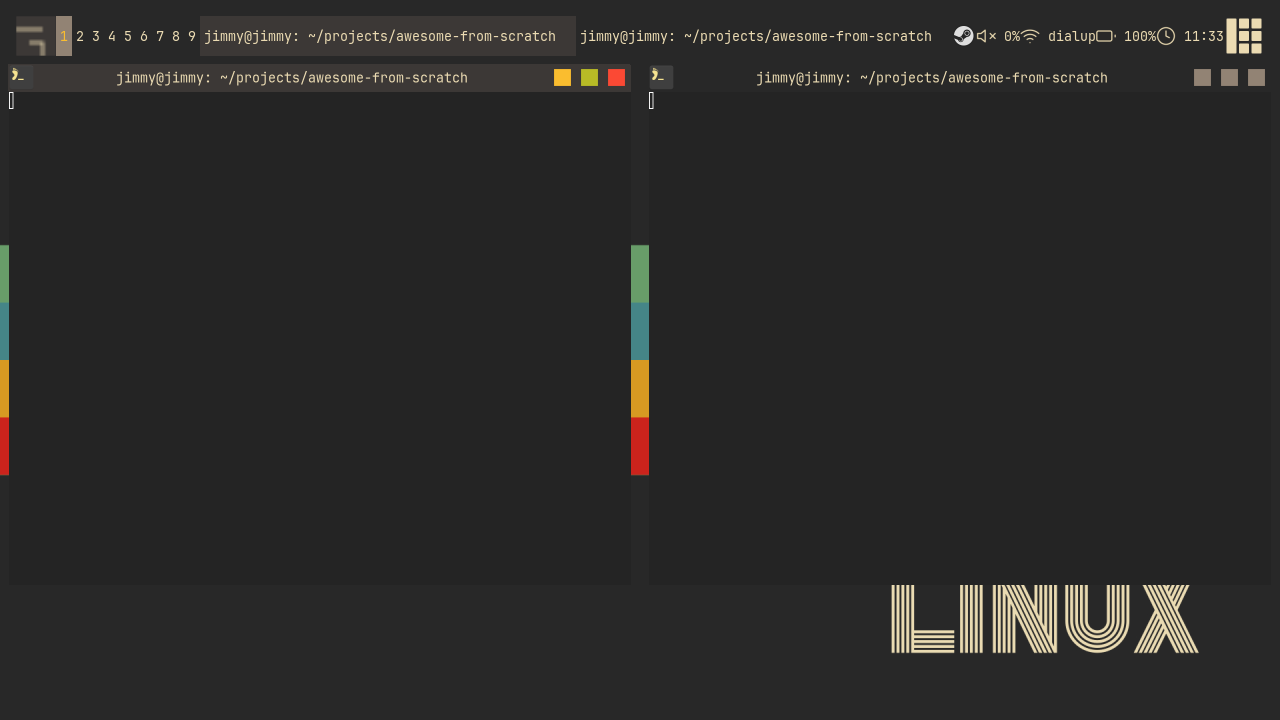
Reload with Mod4+Ctrl+R and the stock bar now shows live volume, your SSID, battery percentage if you have one, and the clock. Tap a volume key and watch the number move instantly. Hover the widgets for tooltips.
Try It
- Make the clock 24-hour. One
os.dateformat change inwidgets/clock.lua. While you are in there, give the clock a tooltip (awful.tooltip, exactly like volume's) showing the full date on hover. - Put signal strength in the WiFi tooltip.
iw dev <interface> linkalso prints asignal: -52 dBmline. Extend the shell command to keep it, parse it by key (you know why), and append it to the tooltip text after the SSID.
Checkpoint
Your bar now runs on four custom widgets built from a shared wrapper vocabulary, updated by timers, async shell reads, and one custom signal. The finished code for this chapter is on the 03-widgets branch.
git checkout 03-widgets
somewm-client test start --config "$PWD/rc.lua" --name afs
Compare your work: git diff 02-keybindings 03-widgets