Client Rules and Titlebars
You will learn
- how
ruled.clientapplies declarative rules to every new window - what the global rule does: focus, raise, and composed placement functions
- how to route apps to tags, float them, and shape their geometry with callbacks
- how the
exceptfield carves exceptions out of a broad rule - how
request::titlebarsbuilds a titlebar from theme-driven buttons
Where We Are
In chapter 04 we built our own bar: a taglist over the five
named workspaces we defined at the top of rc.lua ("code", "web", "chat",
"db", "games"), the promptbox, a centered clock, and the widgets from
chapter 03. The bar shows
where windows are. This chapter decides where they go, and what they look
like when they get there. To catch up: git checkout 04-wibar.
Rules: Declarative Window Management
Every time a window appears, the window manager has decisions to make. Which
screen? Which tag? Floating or tiled? Should it steal focus? You could write
imperative code that inspects each new client and pokes at it, but AwesomeWM
and SomeWM give us something better: ruled.client, a declarative rule
engine. You describe which windows a rule matches and what properties
they should get, and the engine applies it to every client that ever spawns.
Rules are registered inside a handler for the request::rules signal. Signals
are the event system we've been using since chapter 03; this particular one
fires during startup, asking "does anyone have rules to add?" We answer by
calling ruled.client.append_rule for each rule:
-- rc.lua
ruled.client.connect_signal("request::rules", function()
  -- All clients will match this rule.
  ruled.client.append_rule({
    id = "global",
    rule = {},
    properties = {
      focus = awful.client.focus.filter,
      raise = true,
      screen = awful.screen.preferred,
      placement = awful.placement.no_overlap + awful.placement.no_offscreen,
An empty rule = {} matches everything, so this is the baseline every window
inherits. Reading the properties:
focus = awful.client.focus.filter: new windows get focus, but through a filter that refuses it for things that should never take focus, like desktop and dock windows.raise = true: the new window comes to the front of the stack.screen = awful.screen.preferred: on multi-monitor setups, the window opens on the screen the app asked for, falling back to the focused one.placement: where the window's geometry lands, and this one deserves its own paragraph.
Composing Placements with +
awful.placement is a library of placement functions: centered,
top_right, no_overlap, no_offscreen, and more. Each one takes a client
and moves it. The clever part is that they support the + operator:
no_overlap + no_offscreen builds a new placement function that runs
no_overlap first, then hands the result to no_offscreen. So a new
floating window first finds a spot that does not cover existing windows, and
then, whatever spot that was, gets nudged back if any part of it fell off
the screen. You can chain as many as you like this way; placement
composition is one of the nicest small APIs in the whole toolkit.
The Callback: Grants and the Secondary Section
Properties cover the common cases, but a rule can also carry a callback
that receives the client object and runs arbitrary code. The global rule
uses it for focus policy:
-- rc.lua
    callback = function(c)
      c:grant("autoactivate", "switch_tag")
      c:grant("autoactivate", "history")
      c:deny("autoactivate", "mouse_enter")
      c:to_secondary_section()
    end,
grant and deny are the permissions API. Various pieces of code request
that a client be activated (focused and raised), and each request carries a
context saying why. Here we grant activation when the request comes from
switching tags or walking focus history, and deny it when the request comes
from the mouse merely entering the window. That last deny is what keeps this
config from having "sloppy focus": hovering a window does not focus it,
clicking does.
c:to_secondary_section() decides where a new window lands in the tiled
layout. Tiling layouts have a primary section (the master area, usually the
big left column) and a secondary section (the stack). By default a new
window would shove itself into the master area, displacing whatever you were
working on. Sending newcomers to the secondary section means your master
window stays put and new windows pile up in the stack, which feels much
calmer in practice.
Floating Windows by Kind
The second rule introduces rule_any. Where rule requires every listed
property to match, rule_any matches if any of them do, and each property
takes a list of acceptable values:
-- rc.lua
  ruled.client.append_rule({
    id = "floating",
    rule_any = {
      instance = { "copyq", "pinentry" },
      class = {
        "Arandr",
        "Blueman-manager",
        "Gpick",
        "Kruler",
The full list goes on through name and role entries; browse the branch
for the rest. The point is the shape: one rule, four different matching
axes (instance, class, window name, window role), one outcome:
properties = { floating = true }. Color pickers, PIN entry dialogs, and
screen rulers are all tiny utility windows that would look absurd tiled into
a half-screen column, so they float.
Titlebars Where They Belong
The third stock rule turns titlebars on, but only for the window types that want them:
-- rc.lua
  ruled.client.append_rule({
    id = "titlebars",
    rule_any = { type = { "normal", "dialog" } },
    properties = { titlebars_enabled = true },
  })
titlebars_enabled = true does not draw anything by itself. It flags the
client so that a request::titlebars signal fires for it, and later in this
chapter we write the handler that actually builds the bar. Splitting the
decision ("this window gets a titlebar") from the construction ("here is
what a titlebar looks like") is the same declarative split as the rest of
the rule system.
Routing Apps to Tags
Now the fun part. Everything after the stock rules is a set of example rules,
each demonstrating a different piece of ruled.client. Swap the class names
for the apps you actually run. First, tag assignment:
-- rc.lua
  -- Tag assignment: Browsers always open on "web" tag
  ruled.client.append_rule({
    id = "browsers",
    rule_any = {
      class = { "firefox", "Firefox", "chromium", "Chromium", "Google-chrome" },
    },
    properties = { tag = "web" },
  })
tag = "web" matches by name against the tags on the client's screen. These
are exactly the names we defined in chapter 04's tags table, and the
comment above that table warned about this moment: the rule matches by
string, so if you rename a tag, rename it in both places or the rule quietly
stops working. Note also that class names are matched case-sensitively and
apps are not consistent about capitalization (Firefox has reported both
firefox and Firefox across versions), so listing both spellings is cheap
insurance.
The chat rule is the same pattern with different names: Discord, Slack, Telegram, and Signal all land on the "chat" tag. With these two rules in place, opening a browser while you are on "code" silently files it under "web"; the taglist from chapter 04 lights up to tell you it happened.
Finding a Window's Class
To write rules for your own apps you need their class strings. On SomeWM, ask the compositor for every open window at once:
somewm-client client list
id=1 title="tmux a" class="com.mitchellh.ghostty" tags=1 floating=false
id=2 title="Hacker News — Mozilla Firefox" class="firefox" tags=1 floating=false
The class= field is what a rule's class matcher compares against. For one
window in full, including instance and role, pass its id to
somewm-client client info <id>.
On AwesomeWM under X11, run xprop in a terminal and click the window; look
for the WM_CLASS line. Either way, thirty seconds of inspection beats
guessing.
Picture-in-Picture: A Rule Worth Studying
The Picture-in-Picture rule is the best single example in the file because it uses almost every tool at once:
-- rc.lua
  ruled.client.append_rule({
    id = "pip",
    rule_any = {
      name = { "Picture-in-Picture", "Picture in picture" },
    },
    properties = {
      floating = true,
      ontop = true,
      sticky = true,
      skip_taskbar = true,
    },
    callback = function(c)
      -- Position at top-right with margin
      awful.placement.top_right(c, { margins = { top = 50, right = 20 } })
      -- Make it smaller (good for video)
      c:geometry({ width = 480, height = 270 })
    end,
  })
Walk it top to bottom. The match is on the window name (its title) rather than class, because a popped-out video is just another Firefox window as far as class goes; only the title distinguishes it. Then four properties stack up to build the behavior you want from a floating video:
floating = true: it should not be tiled into the layout.ontop = true: it stays above other windows, so switching to your editor does not bury the video.sticky = true: it appears on every tag. Jump from "code" to "web" and the video comes along.skip_taskbar = true: it asks to stay out of tasklists and window lists (our bar has none, but the flag costs nothing); it is ambient, not a task.
Finally the callback handles what properties cannot express: geometry. Here
we see awful.placement used directly as a function call instead of as a
rule property. awful.placement.top_right(c, { margins = ... }) parks the
window in the top-right corner, held 50 pixels off the top (clear of the
wibar) and 20 off the right edge. Then c:geometry() shrinks it to 480x270,
a tidy 16:9 thumbnail. Pop out a YouTube video and it snaps into the corner:
small, pinned, everywhere, and out of the tasklist. That is five decisions
made once, declaratively, instead of five manual adjustments per video.
Callback-Only Rules: File Managers
A rule does not need a properties table at all. The file manager rule is
pure callback:
-- rc.lua
  ruled.client.append_rule({
    id = "filemanager",
    rule_any = {
      class = { "Thunar", "Nautilus", "Pcmanfm", "Nemo" },
    },
    callback = function(c)
      c:geometry({ width = 1000, height = 700 })
      awful.placement.centered(c)
    end,
  })
File managers tend to open at whatever size they last remembered, which is
usually wrong. This rule gives them a comfortable 1000x700 and centers them.
Note the rule does not set floating, so in a tiled layout the geometry is
mostly advisory; it matters when the window floats or the layout is the
floating one. The lesson is the shape: when what you want is "run this code
against matching windows", a callback-only rule is the tool.
Steam and the except Field
Steam is a classic rules headache: one class, many windows, and you want
them treated differently. Two rules split the problem. The first is plain
routing, and it is also the file's only single-axis rule (as opposed to
rule_any): match class = "Steam", set tag = "games". The second rule
introduces the last matching tool, except:
-- rc.lua
  ruled.client.append_rule({
    id = "steam-dialogs",
    rule_any = {
      name = { "Friends List", "Steam - News" },
      class = { "Steam" },
      type = { "dialog" },
    },
    except = { name = "Steam" }, -- Main window excluded
    properties = { floating = true },
  })
The rule_any casts a wide net: the friends list, the news popup, anything
with the Steam class, any dialog. But the main Steam window is titled
"Steam" and would match that net, and we do not want the main library
window floating. except punches a hole in the match: any client whose name
is "Steam" is excluded no matter what the rest matched. (There is a plural
except_any too, mirroring rule_any.) Broad match plus narrow exclusion
is how you tame apps that spray windows of one class.
That is the whole rules section. Rules are evaluated in order and a client can match several; the browser you open gets the global rule's focus and placement and the browsers rule's tag.
Drawing the Titlebars
The titlebars_enabled rule promised titlebars; now we build them. When a
flagged client is ready, it emits request::titlebars, and our handler
constructs the bar. But first, a small helper:
-- rc.lua
-- Wrap a titlebar button with hover effects
local function with_hover(button, hover_opacity)
  hover_opacity = hover_opacity or 1.0
  local normal_opacity = 0.7
  button.opacity = normal_opacity
  button:connect_signal("mouse::enter", function()
    button.opacity = hover_opacity
  end)
  button:connect_signal("mouse::leave", function()
    button.opacity = normal_opacity
  end)
  return button
end
Every widget emits mouse::enter and mouse::leave signals, and every
widget has an opacity. with_hover wraps any button so it idles at 70%
opacity and brightens to full when hovered. It returns the button, so it
composes inline right where the button is declared. This wrap-and-return
pattern is worth stealing; hover feedback this cheap should be everywhere.
The handler itself assigns a declarative widget tree to awful.titlebar(c),
the same widget syntax we have used since chapter 03:
-- rc.lua
  awful.titlebar(c).widget = {
    { -- Left
      layout = wibox.layout.fixed.horizontal,
      with_hover(awful.titlebar.widget.closebutton(c)),
      with_hover(awful.titlebar.widget.floatingbutton(c)),
      with_hover(awful.titlebar.widget.maximizedbutton(c)),
    },
    { -- Middle
      { -- Title
        halign = "center",
        widget = awful.titlebar.widget.titlewidget(c),
      },
      buttons = buttons,
      layout = wibox.layout.flex.horizontal,
    },
    { -- Right
      layout = wibox.layout.fixed.horizontal(),
    },
    layout = wibox.layout.align.horizontal,
  }
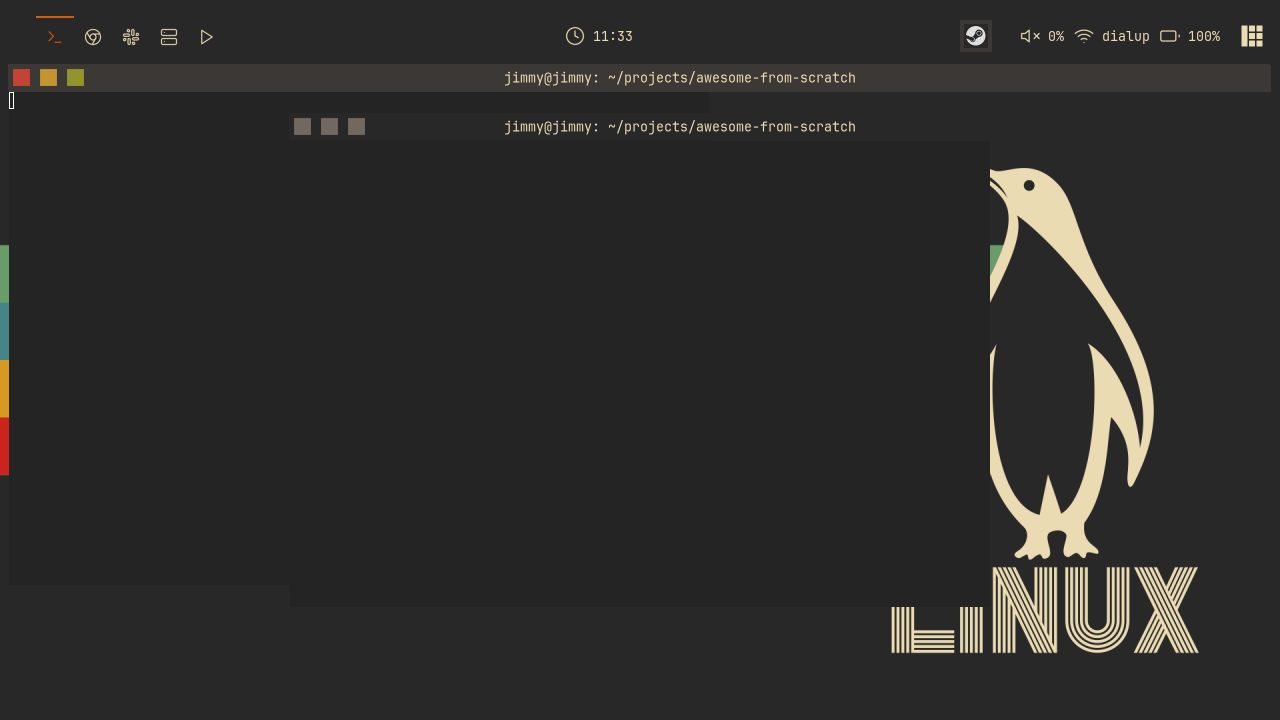
It is an align.horizontal three-section layout, just like the wibar: three
buttons on the left (close, floating-toggle, maximize, macOS-style), the
window title centered in the middle, and an empty right section balancing
the layout. The buttons table (defined just above in the handler; see the
branch) is attached to the middle section, so dragging the title area moves
the window and right-dragging resizes it.
Where do the button graphics come from? The theme. awful.titlebar.widget.closebutton
and friends look up beautiful.titlebar_close_button_focus,
titlebar_maximized_button_focus_active, and a family of similar variables
covering every state combination. Back in chapter 01 our theme set these to
recolored SVGs: one square.svg (or rounded_square.svg, following the
theme's shape_style) run through the same recolor helper that tints all
our icons: red for close, yellow and orange for floating, green for
maximize, grey when the window is unfocused. Change the color scheme and the
titlebar buttons follow automatically. That is the theme system paying off:
the titlebar code names no colors and loads no images, it just asks for
buttons and the theme answers.
Restart the config and every normal window and dialog wears a slim bar with three dots that brighten under the mouse. Toggle a window to floating with the middle dot and watch the placement rules from the top of this chapter decide where it sits.
Try It
- Float your password manager. Find its class with
somewm-client client list(orxpropon X11), then write a rule that setsfloating = trueand usesawful.placement.centeredin a callback. Bonus: addontop = trueand decide whether it belongs in the tasklist. - Route your music player to a tag. Pick a tag from the chapter 04 table
(or add a sixth one, with its icon) and write a rule assigning the player
to it. If the player has a mini-mode window, use
exceptto keep the rule from grabbing it.
Checkpoint
The finished code for this chapter is on
the 05-rules-titlebars branch.
git checkout 05-rules-titlebars
somewm-client test start --config "$PWD/rc.lua" --name afs
Compare your work: git diff 04-wibar 05-rules-titlebars