Lock Screen somewm-only
Where We Are
Build a SomeWM lock screen with a password prompt and covers for every monitor. Start from chapter 11: git checkout 11-dashboard.
Why Lock Screens Are Different
SomeWM controls rendering and input while locked; this Lua module builds the prompt and checks the password through PAM.
This chapter uses SomeWM’s in-process Lua lock API, not an external ext-session-lock client. Keep the registered interactive surface alive while locked: SomeWM 1.4 forces an unlock if that surface is destroyed.
AwesomeWM does not provide these lock APIs. Use a dedicated X11 locker, such as i3lock with xss-lock or xsecurelock. An ordinary fullscreen widget is not a secure lock screen.
The Lock API
The module uses these SomeWM APIs:
awesome.set_lock_surface(wibox)registers the interactive surface;awesome.clear_lock_surface()unregisters it.awesome.add_lock_cover(wibox)andawesome.remove_lock_cover(wibox)register and unregister covers for other monitors.awesome.lock()locks the session;awesome.unlock()unlocks after successful authentication.awesome.lockedreports the state.awesome.authenticate(password)checks the current user’s password through PAM and returns a boolean.lock::activate,lock::deactivate, andlock::auth_failedreport locking, unlocking, and rejected authentication.
Load lockscreen through the existing try() guard so a module-loading error does not stop the rest of rc.lua:
-- rc.lua
-- Lockscreen: somewm's built-in session lock support.
try("lockscreen", function()
  require("lockscreen").init()
end)
Building the Interface
In lockscreen/init.lua, let lockscreen theme values fall back to the general palette:
-- lockscreen/init.lua
  colors.bg = beautiful.lockscreen_bg or beautiful.bg_normal
  colors.fg = beautiful.lockscreen_fg or beautiful.fg_normal
  colors.grey1 = beautiful.fg_dim
  colors.grey2 = beautiful.lockscreen_input_bg or beautiful.bg_focus
build_ui() creates a greeting, clock, date, password dots, Caps Lock warning, status line, and battery readout. The clock is a textclock:
-- lockscreen/init.lua
  clock = wibox.widget({
    format = "%H:%M",
    font = beautiful.font_size(96, "Bold"),
    halign = "center",
    widget = wibox.widget.textclock,
  })
Show one dot per password codepoint in a textbox with a two-pixel primary_color border. Stack the widgets with fixed.vertical inside a centred place container. See the checkpoint branch for the full layout.
Keep widget references in module-local variables so input and signal handlers can update them. Find the status container by id:
-- lockscreen/init.lua
  -- Store status container for color changes
  status_container = layout:get_children_by_id("status_container")[1]
One Prompt, Many Covers
Store surfaces in a table keyed by screen. Give the primary screen the prompt and other screens plain covers. Use wibox with each screen’s exact geometry:
-- lockscreen/init.lua
-- Create the interactive wibox for the password screen
local function create_interactive(s)
  local wb = wibox({
    visible = false,
    ontop = true,
    bg = colors.bg,
    x = s.geometry.x,
    y = s.geometry.y,
    width = s.geometry.width,
    height = s.geometry.height,
    widget = layout,
  })
  awesome.set_lock_surface(wb)
  return wb
end
create_cover(s) omits the widget and registers with awesome.add_lock_cover. Create both kinds with visible = false; the activation handler shows them. M.init() creates the surfaces and connects their handlers:
-- lockscreen/init.lua
function M.init()
  build_ui()

  -- Build surfaces for all screens
  interactive_screen = screen.primary
  for s in screen do
    if s == interactive_screen then
      surfaces[s] = create_interactive(s)
    else
      surfaces[s] = create_cover(s)
    end
  end

  screen.connect_signal("added", on_screen_added)
  screen.connect_signal("removed", on_screen_removed)
  awesome.connect_signal("lock::activate", on_lock_activate)
  awesome.connect_signal("lock::deactivate", on_lock_deactivate)
  awesome.connect_signal("lock::auth_failed", on_auth_failed)
end
When a monitor appears, create a cover and show it if awesome.locked. If the prompt’s monitor disappears, on_screen_removed moves the prompt to screen.primary or screen[1]:
-- lockscreen/init.lua
  -- Interactive screen removed during lock - migrate
  awesome.clear_lock_surface()
  surfaces[s] = nil
  interactive_screen = screen.primary or screen[1]
  if interactive_screen then
    if surfaces[interactive_screen] then
      -- Convert existing cover to interactive
      awesome.remove_lock_cover(surfaces[interactive_screen])
    end
    surfaces[interactive_screen] = create_interactive(interactive_screen)
    if awesome.locked then
      surfaces[interactive_screen].visible = true
    end
  end
In a nested test session with multiple outputs, remove the prompt’s output while locked and check that the prompt appears on a remaining output.
Activation
lock::activate clears input, refreshes the greeting, battery and Caps Lock state, shows the surfaces, and starts the keygrabber:
-- lockscreen/init.lua
local function on_lock_activate()
  password = ""
  password_dots.text = ""
  caps_warning.markup = ""

  -- Update greeting (in case time changed)
  greeting.text = get_greeting()

  -- Update battery and caps lock state
  update_battery()
  read_caps_lock_state()

  show_attempts_status()
  set_visibility_all(true)
  start_grabber()
end
lock::deactivate hides the surfaces, clears the password, and stops the grabber.
The Input Loop
Start the keygrabber with no automatic stop key:
-- lockscreen/init.lua
local function start_grabber()
  grab = awful.keygrabber({
    autostart = true,
    stop_key = nil,
    mask_modkeys = true,
    keypressed_callback = function(_, _, key, _)
      handle_key(key)
    end,
  })
end
stop_key = nil prevents a key from automatically stopping the grabber. Escape clears the input without releasing the keyboard. mask_modkeys filters bare modifier presses such as Shift and Ctrl.
handle_key receives strings such as "a", "é", and "Shift_R". LuaJIT lacks a utf8 library, so count codepoints by counting bytes that are not UTF-8 continuation bytes:
-- lockscreen/init.lua
-- Count UTF-8 codepoints in a string (LuaJIT lacks the utf8 library)
local function utf8_len(s)
  local count = 0
  for i = 1, #s do
    local b = s:byte(i)
    if b < 0x80 or b >= 0xC0 then
      count = count + 1
    end
  end
  return count
end
Accept single-codepoint keys: "é" adds one dot; "Shift_R" adds nothing.
-- lockscreen/init.lua
  elseif #key >= 1 and key:byte(1) >= 0x20 then
    if #password > 256 then
      return
    end
    -- Only append single-codepoint keys; reject named keys like "Shift_R"
    if utf8_len(key) > 1 then
      return
    end
    password = password .. key
    password_dots.text = string.rep("\xE2\x97\x8F", utf8_len(password))
  end
Display one ● ("\xE2\x97\x8F") per codepoint. BackSpace must remove a whole codepoint, walking backwards past continuation bytes to avoid leaving invalid UTF-8:
-- lockscreen/init.lua
  elseif key == "BackSpace" then
    if #password > 0 then
      -- Walk backwards past UTF-8 continuation bytes
      local i = #password
      while i > 1 and password:byte(i) >= 0x80 and password:byte(i) < 0xC0 do
        i = i - 1
      end
      password = password:sub(1, i - 1)
    end
Escape resets password and the dots to empty. Return is where authentication happens:
-- lockscreen/init.lua
  elseif key == "Return" then
    set_status("Authenticating...", false)

    gears.timer.start_new(0.05, function()
      if awesome.authenticate(password) then
        failed_attempts = 0 -- Reset on success
        awesome.unlock()
      else
        -- Just reset input; lock::auth_failed handles the rest
        password = ""
        password_dots.text = ""
      end
      return false
    end)
awesome.authenticate blocks while PAM runs. The 50 ms timer gives the status line time to render first; it does not make authentication asynchronous. Success resets the counter and calls awesome.unlock(), which emits lock::deactivate.
Counting Failed Attempts
Count failures in the lock::auth_failed handler:
-- lockscreen/init.lua
-- Sole owner of the failed_attempts counter
local function on_auth_failed()
  failed_attempts = failed_attempts + 1
  local plural = failed_attempts == 1 and "attempt" or "attempts"
  set_status(string.format("Authentication failed (%d %s)", failed_attempts, plural), true)
  password = ""
  password_dots.text = ""

  gears.timer.start_new(2, function()
    if awesome.locked then
      show_attempts_status()
    end
    return false
  end)
end
A rejected awesome.authenticate call returns false and emits lock::auth_failed. Increment only in the signal handler, or each failure will count twice. Reset the counter on successful authentication.
After two seconds, show_attempts_status() replaces the error with the failed-attempt count, or "Enter password to unlock" when the count is zero. The awesome.locked guard skips this update after unlock. Lock activation does not reset the count.
Caps Lock Without a Shell Per Keystroke
Read the initial Caps Lock state when locking:
-- lockscreen/init.lua
-- Read the kernel LED state once (when the lock activates); afterwards the
-- keygrabber tracks Caps_Lock presses itself instead of spawning a shell
-- process for every character typed.
local function read_caps_lock_state()
Read /sys/class/leds/*capslock*/brightness, falling back to echo "0". After activation, track Caps_Lock presses in handle_key:
-- lockscreen/init.lua
  if key == "Caps_Lock" then
    caps_lock_on = not caps_lock_on
    update_caps_warning()
Battery Status
Reuse chapter 03’s battery API:
-- lockscreen/init.lua
  battery.get_status(function(status)
    if not status.percentage then
      battery_widget.visible = false
      return
    end
    battery_widget.visible = true
    battery_widget.markup = string.format(
      '<span foreground="%s">%s %d%%</span>',
      battery.level_color(status.percentage),
      battery.level_icon(status.percentage, status.charging),
      status.percentage
    )
  end)
Hide the line when status.percentage is nil, such as when no battery is available.
Add the Lock Actions
awesome.lock() does nothing without a registered lock surface. Once M.init() registers the surfaces, add Lock to the exit screen:
-- exitscreen/init.lua
{
name = "Lock",
icon = "",
key = "l",
command = function()
awesome.lock()
end,
},
Add Lock above Logout in the main menu, with its handler:
-- widgets/mainmenu.lua
{ type = "item", icon = "", label = "Lock", action = "lock" },
-- widgets/mainmenu.lua
  elseif item.action == "lock" then
    awesome.lock()
In the nested session, press Super+Shift+E, then l. Check that every output is covered, a wrong password keeps the session locked and increments the count once, and the correct password unlocks it.
Try It
- Use a wallpaper in a
wibox.container.backgroundwithbgimage, or pre-blur a copy with ImageMagick during initialisation. - Add a keyboard-layout indicator near the input using
awful.widget.keyboardlayoutor thexkbsignals.
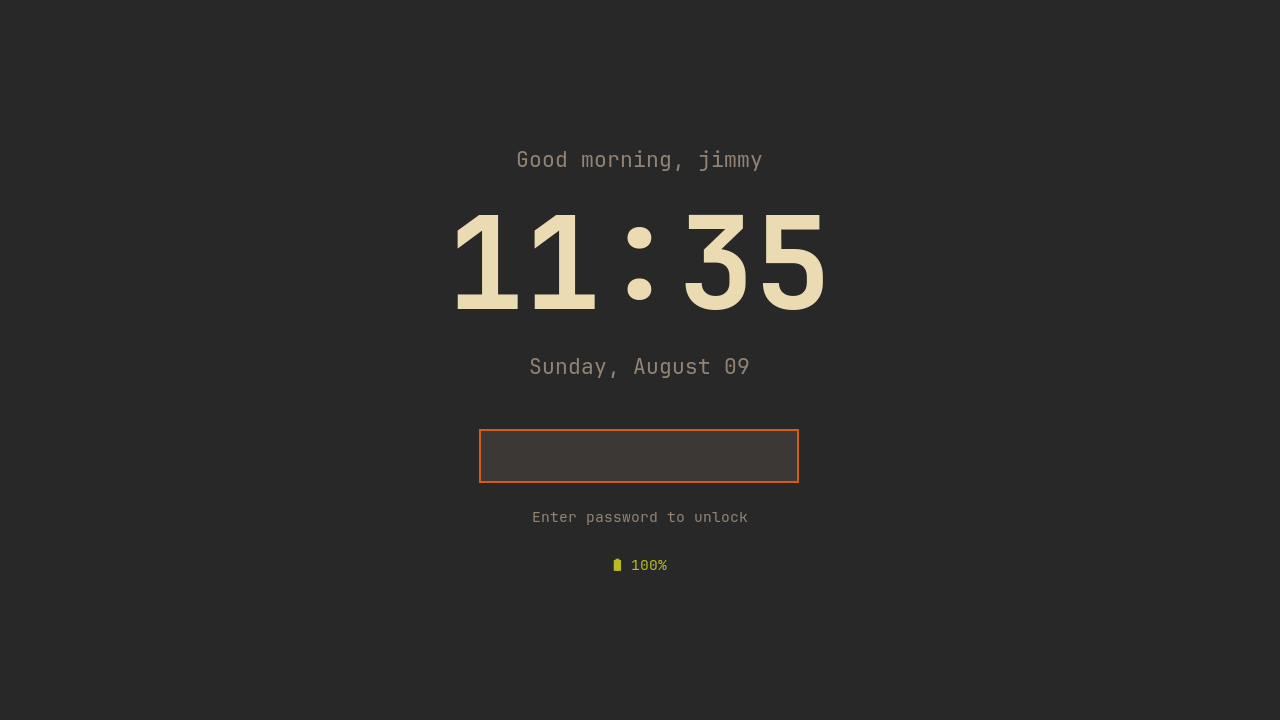
Checkpoint
The finished code is on the 12-lockscreen branch.
git checkout 12-lockscreen
somewm-client test start --config "$PWD/rc.lua" --name afs
Compare your work: git diff 11-dashboard 12-lockscreen