Wibar: Our Own Bar
Where We Are
Build a bar with icon tags, a clock, and the status widgets from chapter 03. To catch up: git checkout 03-widgets.
One Bar Per Screen
A wibar docks to a screen edge and reserves space so tiled windows do not cover it. Create wibar.lua as a function that builds one bar per screen:
-- wibar.lua
local awful = require("awful")
local beautiful = require("beautiful")
local wibox = require("wibox")
local widgets = require("widgets")
local dpi = require("beautiful.xresources").apply_dpi

return function(s)
  local wibar = awful.wibar({
    position = "top",
    screen = s,
    widget = {
      -- ...the three sections, covered below...
      layout = wibox.layout.align.horizontal,
    },
  })
  return wibar
end
In rc.lua, replace the stock bar construction inside request::desktop_decoration with this call. The handler runs for each screen, including monitors connected later:
-- rc.lua
  s.mywibox = wibar(s)
end)
Add local wibar = require("wibar") near the top of rc.lua. Keep its promptbox and layoutbox setup. This bar omits the tasklist; chapter 09 adds a window switcher.
Workspaces as Data
A tag is a workspace. Clients can belong to several tags, and each screen displays its selected tags. Replace the nine numbered tags with this table at the top of rc.lua:
-- rc.lua
-- Icon files are in icons/. Rules match these tag names, so update both
-- the table and the rules when renaming a tag.
local tags = {
  { name = "code", icon = "terminal.svg" },
  { name = "web", icon = "chrome.svg" },
  { name = "chat", icon = "slack.svg" },
  { name = "db", icon = "server.svg" },
  { name = "games", icon = "play.svg" },
}
Inside the request::desktop_decoration handler, the table becomes real tags:
-- rc.lua
screen.connect_signal("request::desktop_decoration", function(s)
  -- Create this screen's tags from the table defined at the top
  for i, t in ipairs(tags) do
    awful.tag.add(t.name, {
      screen = s,
      layout = awful.layout.layouts[1],
      selected = i == 1,
      icon_name = t.icon,
    })
  end
icon_name is a custom property; tag objects accept extra properties. The taglist will use it to find each icon. selected = i == 1 selects the first tag on startup.
Remove the stock tag save-and-restore block. This config recreates tags from the table when a screen appears.
The Bar Skeleton
awful.wibar uses the beautiful.wibar_* theme defaults from chapter 01:
-- theme/theme.lua
theme.wibar_height = theme.useless_gap * 5
theme.wibar_margins = {
  top = theme.useless_gap * 2,
  left = theme.useless_gap * 2,
  right = theme.useless_gap * 2,
}
With useless_gap = dpi(8), the bar is 40 scaled pixels tall, with 16-pixel top and side margins. Tiling gaps provide the space below it.
wibox.layout.align.horizontal has three slots. The left and right groups take their natural widths; the middle gets the remaining space.
Centre the Clock
Here is the middle slot:
-- wibar.lua
{
  nil,
  widgets.clock,
  nil,
  expand = "none",
  layout = wibox.layout.align.horizontal,
},
expand = "none" centres the clock at its natural width within the space between the left and right groups.
To centre the clock on the screen, set expand = "none" on the root align layout instead. This limits each side group to half the bar.
The Taglist
Add the taglist and promptbox to the left slot:
-- wibar.lua
{
  widgets.wrappers.vertical_separator(beautiful.wibar_height * 0.5),
  widgets.taglist(s),
  widgets.wrappers.vertical_separator(beautiful.wibar_height * 0.5),
  -- The prompt for Mod+R (run) and Mod+X (Lua): without a home in the
  -- bar, prompts still run but type into an invisible textbox
  s.mypromptbox,
  layout = wibox.layout.fixed.horizontal,
},
The separator helpers add empty spacing around the taglist. widgets.taglist(s) builds a taglist for this screen.
widgets/taglist.lua wraps awful.widget.taglist, Awesome's built-in widget that maintains one entry per tag and re-renders entries when tag state changes. First, the mouse bindings:
-- widgets/taglist.lua
  local taglist_buttons = {
    awful.button({}, 1, function(t)
      t:view_only()
    end),
    awful.button({ modkey }, 1, function(t)
      if client.focus then
        client.focus:move_to_tag(t)
      end
    end),
    awful.button({}, 3, awful.tag.viewtoggle),
    awful.button({ modkey }, 3, function(t)
      if client.focus then
        client.focus:toggle_tag(t)
      end
    end),
    awful.button({}, 4, function(t)
      awful.tag.viewprev(t.screen)
    end),
    awful.button({}, 5, function(t)
      awful.tag.viewnext(t.screen)
    end),
  }
awful.button takes modifiers, a button number, and a callback. The taglist passes the clicked tag to the callback. Buttons 1 and 3 are left and right click; 4 and 5 are the scroll wheel. modkey is the global defined in rc.lua.
Replace the default text labels with an icon and selection indicator:
-- widgets/taglist.lua
    widget_template = {
      {
        id = "indicator",
        wibox.widget.base.make_widget(),
        forced_height = 2,
        bg = beautiful.bg_normal,
        widget = wibox.container.background,
      },
      nil,
      {
        {
          id = "icon_role",
          widget = wibox.widget.imagebox,
        },
        margins = beautiful.wibar_height * 0.25,
        widget = wibox.container.margin,
      },
      layout = wibox.layout.fixed.vertical,
      create_callback = update_tag,
      update_callback = update_tag,
    },
create_callback runs when an entry is built; update_callback runs when its tag state changes. Both call update_tag, which finds the icon and indicator by id:
-- widgets/taglist.lua
  local update_tag = function(widget, tag, index, taglist)
    local w = widget:get_children_by_id("icon_role")[1]
    local indicator = widget:get_children_by_id("indicator")[1]
    -- Use a generic icon if rc.lua did not set one
    local icon_name = tag.icon_name or "grid.svg"
    local color

    if tag.selected then
      color = beautiful.primary_color
      indicator.bg = beautiful.primary_color
    elseif tag.urgent then
      color = beautiful.bg_urgent
      indicator.bg = beautiful.bg_normal
    elseif #tag:clients() > 0 then
      color = beautiful.active_hover
      indicator.bg = beautiful.bg_normal
    else
      color = beautiful.fg_normal
      indicator.bg = beautiful.bg_normal
    end

    w.image = gears.color.recolor_image(beautiful.icon_dir .. "/" .. icon_name, color)
  end
Register the taglist in widgets/init.lua. Open a client on an empty tag to check its icon changes colour, then switch tags to check the indicator.
The Right Side
Add the systray, status widgets, and layoutbox to the right slot, with separators between them. Start with the systray:
-- wibar.lua
-- Styled systray container with subtle inset appearance
{
  {
    {
      wibox.widget.systray(),
      margins = dpi(4),
      widget = wibox.container.margin,
    },
    bg = beautiful.bg_focus,
    shape = beautiful.shape_small,
    widget = wibox.container.background,
  },
  left = dpi(8),
  right = dpi(8),
  top = dpi(4),
  bottom = dpi(4),
  widget = wibox.container.margin,
},
There is one systray per session. The containers add padding and a rounded background.
Next, the three status widgets from chapter 03:
-- wibar.lua
{
  widgets.volume,
  widgets.wifi,
  widgets.battery.widget,
  spacing = dpi(10),
  layout = wibox.layout.fixed.horizontal,
},
spacing = dpi(10) separates the status widgets without changing their shared icon_with_text wrapper.
Finally the layoutbox, Awesome's built-in indicator showing the current tiling layout (its click-to-cycle buttons are still attached in rc.lua):
-- wibar.lua
{
  {
    s.mylayoutbox,
    forced_height = beautiful.wibar_height * 0.6,
    forced_width = beautiful.wibar_height * 0.6,
    widget = wibox.container.constraint,
  },
  halign = "center",
  valign = "center",
  widget = wibox.container.place,
},
The constraint limits the icon to 60% of the bar height; place centres it. Separate the groups with vertical_separator(beautiful.wibar_height * 0.5).
Reload with Mod4+Ctrl+R. Check the five icon tags, clock, and tray, then open the run prompt with Mod4+r to confirm it is visible.
Try It
- Move
widgets.clockout of the middle slot and into the right-hand group, next to the status widgets. What happens to the empty middle? Then try leaving a different widget centered instead, using the samenil, widget, nil, expand = "none"pattern. - Add a sixth workspace to the
tagstable with an icon of your choice: pick any SVG fromicons/(or drop in your own monochrome SVG) and give the tag a name. Check that the taglist renders it, then click and scroll to it.
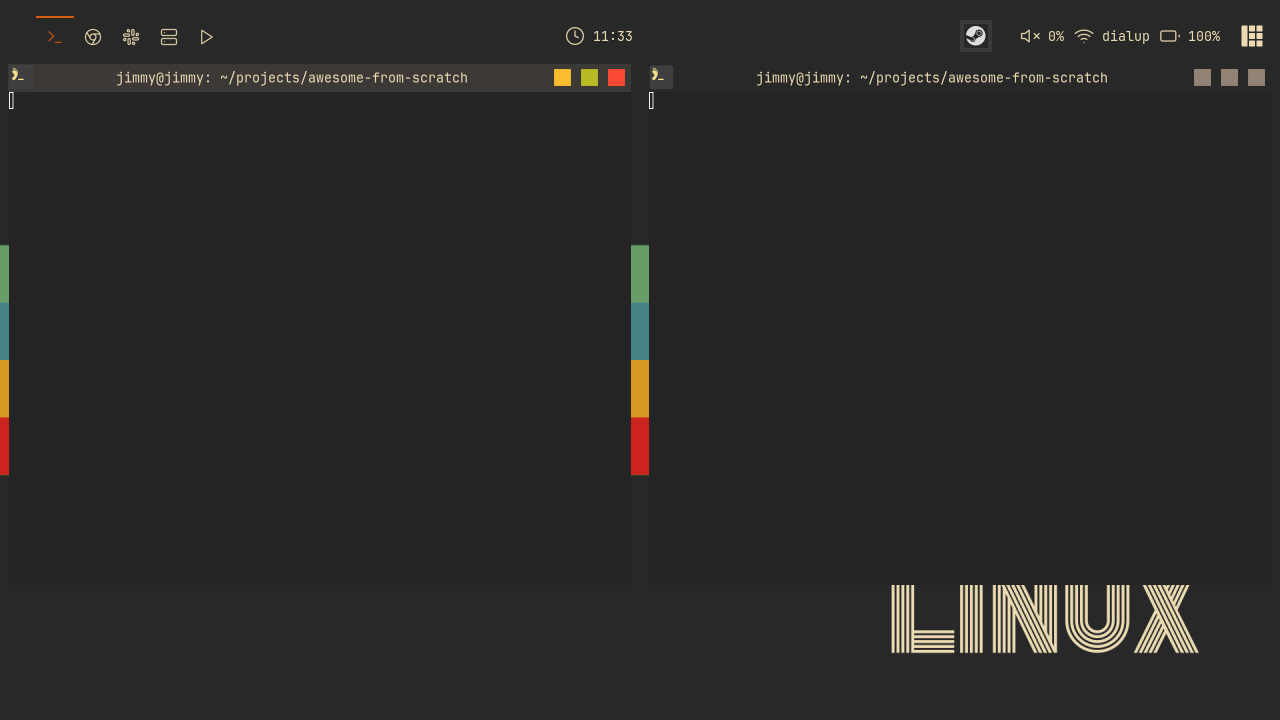
Checkpoint
The finished code for this chapter is on the 04-wibar branch:
git checkout 04-wibar
somewm-client test start --config "$PWD/rc.lua" --name afs
Compare your work: git diff 03-widgets 04-wibar