Client Rules and Titlebars
Where We Are
Route apps to tags, set floating behaviour, and build titlebars. Start from chapter 04: git checkout 04-wibar.
Rules: Declarative Window Management
ruled.client matches new windows and applies properties to them.
Register rules with ruled.client.append_rule inside the startup request::rules handler:
-- rc.lua
ruled.client.connect_signal("request::rules", function()
  -- All clients will match this rule.
  ruled.client.append_rule({
    id = "global",
    rule = {},
    properties = {
      focus = awful.client.focus.filter,
      raise = true,
      screen = awful.screen.preferred,
      placement = awful.placement.no_overlap + awful.placement.no_offscreen,
An empty rule = {} matches every client:
focus = awful.client.focus.filter: excludes desktop and dock windows from focus.raise = true: brings the window to the front.screen = awful.screen.preferred: uses the screen the app requested, falling back to the focused screen.placement: positions the window.
Composing Placements with +
awful.placement provides functions such as centered, top_right, no_overlap, and no_offscreen. Combine them with + to run them in order. Here, no_overlap finds a position clear of existing windows, then no_offscreen adjusts it to stay on screen.
The Callback: Grants and the Secondary Section
A rule can also run a callback with the client as its argument:
-- rc.lua
    callback = function(c)
      c:grant("autoactivate", "switch_tag")
      c:grant("autoactivate", "history")
      c:deny("autoactivate", "mouse_enter")
      c:to_secondary_section()
    end,
grant and deny control activation requests by context. Here, tag switches and focus history may activate the client; mouse entry may not. Clicking still focuses it.
c:to_secondary_section() puts new windows in the secondary section (the stack), preserving the current window in the primary section (the master area).
Floating Windows by Kind
rule requires every listed property to match. rule_any requires any one to match and accepts a list of values for each property:
-- rc.lua
  ruled.client.append_rule({
    id = "floating",
    rule_any = {
      instance = { "copyq", "pinentry" },
      class = {
        "Arandr",
        "Blueman-manager",
        "Gpick",
        "Kruler",
The full rule also matches name and role; see the checkpoint branch. Its properties = { floating = true } makes matching utility windows float.
Titlebars Where They Belong
Enable titlebars for normal windows and dialogs:
-- rc.lua
  ruled.client.append_rule({
    id = "titlebars",
    rule_any = { type = { "normal", "dialog" } },
    properties = { titlebars_enabled = true },
  })
titlebars_enabled = true triggers request::titlebars. The handler below builds the bar.
Routing Apps to Tags
Add rules for your own apps, replacing these class names as needed:
-- rc.lua
  -- Tag assignment: Browsers always open on "web" tag
  ruled.client.append_rule({
    id = "browsers",
    rule_any = {
      class = { "firefox", "Firefox", "chromium", "Chromium", "Google-chrome" },
    },
    properties = { tag = "web" },
  })
tag = "web" selects a tag by name on the client’s screen. If you rename a tag from chapter 04, update its rules too. Class matching is case-sensitive; Firefox has used both firefox and Firefox.
The branch also routes Discord, Slack, Telegram, and Signal to "chat". Open a browser while viewing "code" and check that it appears on "web".
Finding a Window's Class
On SomeWM, list open windows to find their class strings:
somewm-client client list
id=1 title="tmux a" class="com.mitchellh.ghostty" tags=1 floating=false
id=2 title="Hacker News — Mozilla Firefox" class="firefox" tags=1 floating=false
The class= field is what a rule's class matcher compares against. For one
window in full, including instance and role, pass its id to
somewm-client client info <id>.
On AwesomeWM under X11, run xprop, click the window, and read WM_CLASS.
Picture-in-Picture
Match picture-in-picture windows by title:
-- rc.lua
  ruled.client.append_rule({
    id = "pip",
    rule_any = {
      name = { "Picture-in-Picture", "Picture in picture" },
    },
    properties = {
      floating = true,
      ontop = true,
      sticky = true,
      skip_taskbar = true,
    },
    callback = function(c)
      -- Position at top-right with margin
      awful.placement.top_right(c, { margins = { top = 50, right = 20 } })
      -- Make it smaller (good for video)
      c:geometry({ width = 480, height = 270 })
    end,
  })
A popped-out video shares the browser’s class, so this rule matches its title.
floating = true: excludes it from tiling.ontop = true: keeps it above normal windows.sticky = true: shows it on every tag.skip_taskbar = true: asks tasklists and window lists to omit it.
The callback places it at the top-right with 50 pixels of top margin and 20 on the right, then sets its size to 480 × 270. Open a picture-in-picture video to check the rule.
Callback-Only Rules: File Managers
A rule can use a callback without a properties table:
-- rc.lua
  ruled.client.append_rule({
    id = "filemanager",
    rule_any = {
      class = { "Thunar", "Nautilus", "Pcmanfm", "Nemo" },
    },
    callback = function(c)
      c:geometry({ width = 1000, height = 700 })
      awful.placement.centered(c)
    end,
  })
This sets a 1000 × 700 size and centres the window. It does not enable floating, so a tiled layout can override that geometry.
Steam and the except Field
The branch first routes class = "Steam" to "games". A second rule uses except to exclude the main window from a broad floating rule:
-- rc.lua
  ruled.client.append_rule({
    id = "steam-dialogs",
    rule_any = {
      name = { "Friends List", "Steam - News" },
      class = { "Steam" },
      type = { "dialog" },
    },
    except = { name = "Steam" }, -- Main window excluded
    properties = { floating = true },
  })
This matches either listed title, any Steam window, or any dialog. except = { name = "Steam" } excludes windows with that title regardless of which condition matched. except_any provides the corresponding any-property exclusion.
Rules run in order, and a client can match several. A browser gets the global rule’s focus and placement settings as well as its tag assignment.
Drawing the Titlebars
Build titlebars in a request::titlebars handler. First, define a helper for button hover effects:
-- rc.lua
-- Wrap a titlebar button with hover effects
local function with_hover(button, hover_opacity)
  hover_opacity = hover_opacity or 1.0
  local normal_opacity = 0.7
  button.opacity = normal_opacity
  button:connect_signal("mouse::enter", function()
    button.opacity = hover_opacity
  end)
  button:connect_signal("mouse::leave", function()
    button.opacity = normal_opacity
  end)
  return button
end
with_hover sets a button’s opacity to 0.7 and raises it to 1.0 on hover by default. It returns the button for use in the widget declaration.
In the handler, assign the widget tree to awful.titlebar(c):
-- rc.lua
  awful.titlebar(c).widget = {
    { -- Left
      layout = wibox.layout.fixed.horizontal,
      with_hover(awful.titlebar.widget.closebutton(c)),
      with_hover(awful.titlebar.widget.floatingbutton(c)),
      with_hover(awful.titlebar.widget.maximizedbutton(c)),
    },
    { -- Middle
      { -- Title
        halign = "center",
        widget = awful.titlebar.widget.titlewidget(c),
      },
      buttons = buttons,
      layout = wibox.layout.flex.horizontal,
    },
    { -- Right
      layout = wibox.layout.fixed.horizontal(),
    },
    layout = wibox.layout.align.horizontal,
  }
The align.horizontal layout has three buttons on the left, the title in the middle, and an empty right section. The buttons table, defined earlier in the handler on the branch, lets you drag the title to move the window and right-drag to resize it.
Button widgets read theme keys such as beautiful.titlebar_close_button_focus and titlebar_maximized_button_focus_active. The chapter 01 theme supplies recoloured square.svg or rounded_square.svg assets for each button state.
Reload the config. Check that normal windows and dialogs have titlebars, the buttons brighten on hover, and the close, floating, and maximise buttons work.
Try It
- Float your password manager. Find its class with
somewm-client client list(orxpropon X11), then write a rule that setsfloating = trueand usesawful.placement.centeredin a callback. Bonus: addontop = trueand decide whether it belongs in the tasklist. - Route your music player to a tag. Pick a tag from the chapter 04 table
(or add a sixth one, with its icon) and write a rule assigning the player
to it. If the player has a mini-mode window, use
exceptto keep the rule from grabbing it.
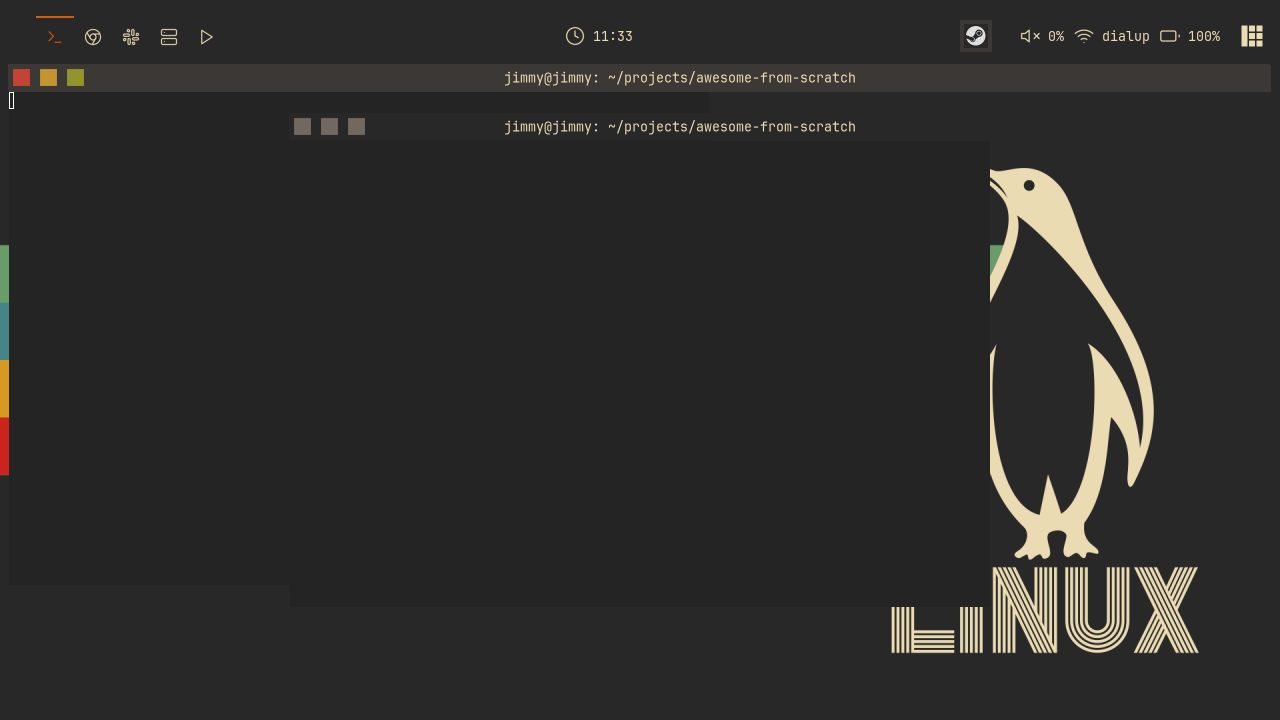
Checkpoint
The finished code for this chapter is on
the 05-rules-titlebars branch.
git checkout 05-rules-titlebars
somewm-client test start --config "$PWD/rc.lua" --name afs
Compare your work: git diff 04-wibar 05-rules-titlebars