The Default Config
Read the stock rc.lua and run it in a nested session before editing it in later chapters.
Where We Are
Clone the companion repository and check out the baseline:
git clone https://github.com/trip-zip/awesome-from-scratch.git
cd awesome-from-scratch
git checkout 00-default
The branch contains a README and the stock rc.lua, formatted with stylua. Compare neighbouring checkpoint branches with git diff to see each chapter’s changes.
What rc.lua Is
rc.lua is a Lua program executed at startup. It configures the desktop and registers callbacks for later events. Reload with Mod4+Control+r to read it again.
SomeWM looks for your config at $XDG_CONFIG_HOME/somewm/rc.lua (~/.config/somewm/rc.lua by default); AwesomeWM uses ~/.config/awesome/rc.lua. This series points the nested session at the checkout’s rc.lua instead.
A Tour of the File
Open rc.lua alongside this section. Comments such as -- {{{ Menu mark sections; -- @DOC_WIBAR@ markers are for API documentation generation.
Libraries and Error Handling
The file loads gears (utilities), awful (window management), wibox (widgets), beautiful (theming), naughty (notifications), and ruled (rules). It then registers an error handler:
-- rc.lua
naughty.connect_signal("request::display_error", function(message, startup)
  naughty.notification({
    urgency = "critical",
    title = "Oops, an error happened" .. (startup and " during startup!" or "!"),
    message = message,
  })
end)
A signal is a named event. connect_signal registers a callback; this one shows a critical notification when naughty reports an error.
The SomeWM config also includes an X11-only-code warning, tag persistence across monitor hotplug, and built-in lockscreen setup.
AwesomeWM cannot load SomeWM’s lockscreen module. The error stops the rest of rc.lua from running:
error: rc.lua:72: module 'lockscreen' not found
Comment out the require before running this branch on AwesomeWM:
-- rc.lua
-- Initialize lockscreen (must be after beautiful.init)
-- require("lockscreen").init()
Mod4+Shift+Escape also calls the SomeWM-only awesome.lock(); avoid that binding on AwesomeWM. Chapter 01 removes the require and chapter 02 replaces the bindings. Chapter 12 explains locking on each.
Theme and Variables
Load the default theme:
-- rc.lua
beautiful.init(gears.filesystem.get_themes_dir() .. "default/theme.lua")
beautiful.init loads a table of colours, fonts, and sizes used by widgets. Chapter 01 replaces it with our own theme.
Next come the user variables:
-- rc.lua
terminal = "xterm"
editor = os.getenv("EDITOR") or "nano"
editor_cmd = terminal .. " -e " .. editor
plus modkey = "Mod4", the Super key, which prefixes nearly every binding.
The Menu
The stock config builds a right-click desktop menu and a launcher button for the bar:
-- rc.lua
mymainmenu = awful.menu({
  items = {
    { "awesome", myawesomemenu, beautiful.awesome_icon },
    { "open terminal", terminal },
  },
})

mylauncher = awful.widget.launcher({ image = beautiful.awesome_icon, menu = mymainmenu })
Right-click the desktop to open the menu. Chapter 08 replaces it.
Layouts, Wallpaper, and Tags
request::default_layouts sets the layouts cycled with Mod4+Space; request::wallpaper sets each screen’s wallpaper. Each screen also gets nine tags (workspaces), selected with Mod4+1 through Mod4+9. A window, called a client, can belong to several tags. Selecting a tag shows its clients.
The Wibar
The largest section runs once per screen, building a taglist, a prompt box, a layout indicator, a tasklist, and finally the bar itself:
-- rc.lua
  s.mywibox = awful.wibar({
    position = "top",
    screen = s,
    -- @DOC_SETUP_WIDGETS@
    widget = {
      layout = wibox.layout.align.horizontal,
      { -- Left widgets
        layout = wibox.layout.fixed.horizontal,
        mylauncher,
        s.mytaglist,
        s.mypromptbox,
      },
      s.mytasklist, -- Middle widget
      { -- Right widgets
        layout = wibox.layout.fixed.horizontal,
        mykeyboardlayout,
        wibox.widget.systray(),
        mytextclock,
        s.mylayoutbox,
      },
    },
  })
Declarative widget syntax uses nested Lua tables to specify layouts and their children. This wibar has left, middle, and right sections.
Keybindings
Bindings are awful.key objects appended in themed batches:
-- rc.lua
  awful.key({ modkey, "Control" }, "r", awesome.restart, { description = "reload awesome", group = "awesome" }),
  awful.key({ modkey, "Shift" }, "q", awesome.quit, { description = "quit awesome", group = "awesome" }),
  awful.key({ modkey }, "l", function()
    awful.tag.incmwfact(0.05)
  end, { description = "increase master width factor", group = "layout" }),
Each binding specifies modifiers, a key, a callback, and a description table. Press Mod4+s to see the help popup, organised by group. Chapter 02 moves the bindings into their own module.
Rules
When a new client appears, ruled.client matches it against declarative rules and applies properties. The first rule matches everything:
-- rc.lua
  -- All clients will match this rule.
  ruled.client.append_rule({
    id = "global",
    rule = {},
    properties = {
      focus = awful.client.focus.filter,
      raise = true,
      screen = awful.screen.preferred,
      placement = awful.placement.no_overlap + awful.placement.no_offscreen,
    },
  })
Other rules float selected apps and enable titlebars on normal windows and dialogs. Chapter 05 covers these.
Final Signals
The file closes with three signal handlers: one that builds each client's titlebar widget tree on request::titlebars, one that displays notifications in the default box, and sloppy focus:
-- rc.lua
-- Enable sloppy focus, so that focus follows mouse.
client.connect_signal("mouse::enter", function(c)
  c:activate({ context = "mouse_enter", raise = false })
end)
Move the mouse over a window and it takes focus. Delete these three lines later if that is not your taste.
Running It Nested
Test edits in a nested window first. From the checkout, on SomeWM:
somewm-client test start --config "$PWD/rc.lua" --name afs
On AwesomeWM, use Xephyr:
Xephyr :1 -ac -br -noreset -screen 1280x720 &
DISPLAY=:1 awesome -c "$PWD/rc.lua"
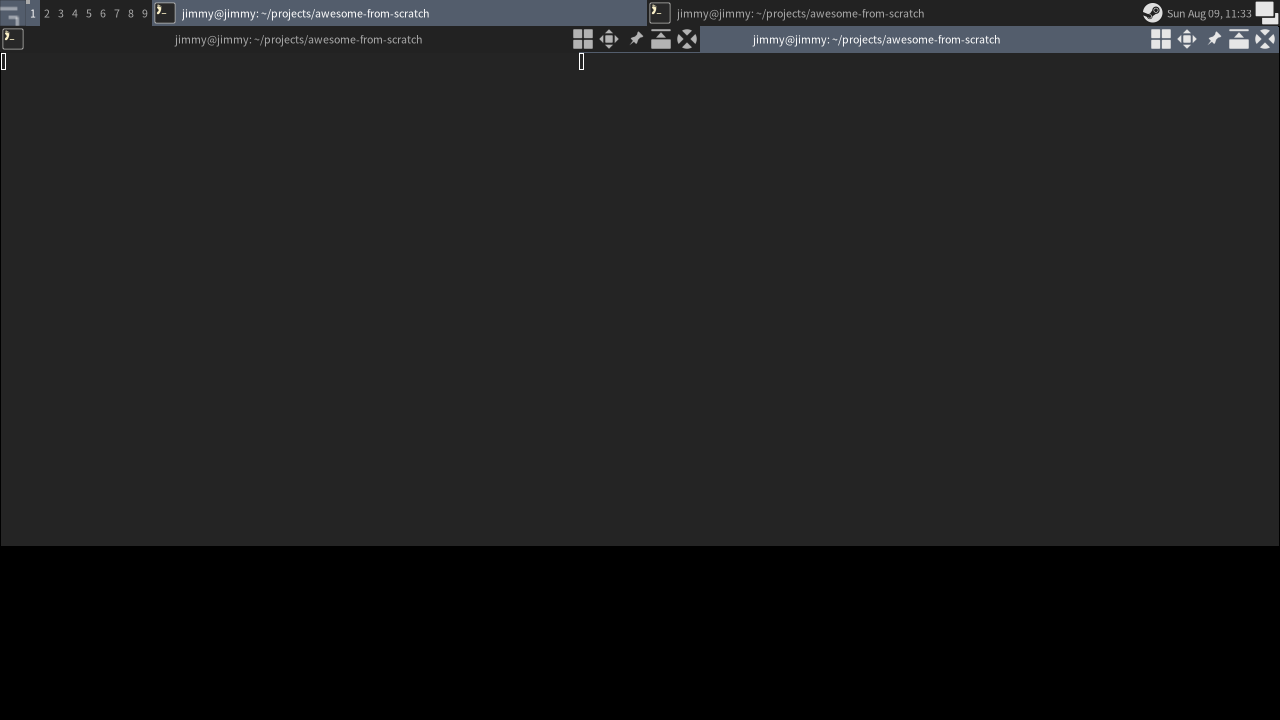
You should see a grey bar, nine tags, and a right-click menu. Open a terminal with Mod4+Return, cycle layouts with Mod4+Space, and open help with Mod4+s. See nested testing and the Mod4 remapping caveat.
When You Break It
If a config change fails:
- Nested session: it may load the fallback config or exit. Close it, fix the file, and start it again.
- Live session: if the fallback config loads, its error notification identifies the file and line. Fix it and reload with
Mod4+Control+r.
Check syntax with luac -p rc.lua, then test in the nested session before reloading your desktop.
The Road Ahead
Next, build the theme. The series overview lists all chapters.
Checkpoint
The code for this chapter is the 00-default branch:
git checkout 00-default
somewm-client test start --config "$PWD/rc.lua" --name afs