Theme: Palettes, Shapes, Recolored Assets
You will learn
- What
beautifulis and howbeautiful.init()turns one Lua table into the styling source for every widget - How named palettes plus semantic color roles let one variable switch the entire look
- How to enforce one font family and DPI-aware sizing across the whole config
- How a global shape switch and
gears.color.recolor_imagekeep assets in sync with the theme
Where We Are
This chapter replaces the default theme with theme/theme.lua. Start from chapter 00: git checkout 00-default.
What Beautiful Actually Is
beautiful.init(path) loads a Lua table of theme values. Widgets read them through beautiful, such as beautiful.bg_normal.
Stock widgets recognise built-in keys such as bg_normal, border_width, and font. Unset keys use the component's defaults.
Custom keys affect only code that reads them. This series defines primary_color, shape, and font_size for its own widgets.
Load your theme in rc.lua:
-- rc.lua
beautiful.init(config_dir .. "theme/theme.lua")
Define config_dir at the top of rc.lua, before loading the theme:
-- rc.lua
local config_dir = require("gears.filesystem").get_configuration_dir()
package.path = config_dir .. "?.lua;" .. config_dir .. "?/init.lua;" .. package.path
get_configuration_dir() returns the directory of the loaded rc.lua, including a trailing slash. This works from an installed config or a checkout. The package.path line lets require() find modules beside rc.lua.
Where This File Comes From
Copy the default theme and its assets. Run these commands from the checkout root.
On SomeWM:
mkdir -p theme
cp /usr/share/somewm/themes/default/theme.lua theme/theme.lua
cp /usr/share/somewm/themes/default/submenu.png theme/
cp -r /usr/share/somewm/themes/default/layouts theme/layouts
On AwesomeWM:
mkdir -p theme
cp /usr/share/awesome/themes/default/theme.lua theme/theme.lua
cp /usr/share/awesome/themes/default/submenu.png theme/
cp -r /usr/share/awesome/themes/default/layouts theme/layouts
Both are packaged-install paths. A source build lands under /usr/local instead (/usr/local/share/somewm/themes/, /usr/local/share/awesome/themes/). If neither exists, ask the running window manager, which is the same call beautiful uses internally:
somewm-client eval 'return require("gears.filesystem").get_themes_dir()'  # SomeWM
awesome-client 'return require("gears.filesystem").get_themes_dir()'      # AwesomeWM
The theme uses the white layout icons (*w.png). Extra files copied from the default theme are harmless.
Also copy square.svg and rounded_square.svg from the chapter's theme/titlebar/ into your config's theme/titlebar/. These are new assets, not included in the default theme.
The rest of this chapter is edits to that copy:
| The default theme | What we turn it into |
|---|---|
Hex codes inline (theme.bg_normal = "#222222") | Named palettes plus semantic roles |
themes_path = get_themes_dir(), assets read from the install | theme_path = config_dir .. "theme", assets vendored beside rc.lua |
| Image paths used as-is | Every image passed through recolor() |
theme.font = "sans 8" | One font_family and a theme.font_size() builder |
theme.wallpaper pointing at a shipped PNG | A per-screen wallpaper list in rc.lua |
theme.icon_theme = nil | "Papirus" |
Taglist square markers from theme_assets | Dropped. The chapter 04 taglist renders icons instead |
An urgent-notification ruled.notification rule | Dropped. Chapter 06 rebuilds notifications from scratch |
Point beautiful.init at your copy and reload before changing anything, so you know the copy itself is sound.
Import the theme helpers:
-- theme/theme.lua
local gears = require("gears")
local theme_assets = require("beautiful.theme_assets")
local xresources = require("beautiful.xresources")
local dpi = xresources.apply_dpi
local recolor = require("gears").color.recolor_image
Palettes: Named Colors, One Switch
Define the palettes in a colors table:
-- theme/theme.lua
local colors = {
  gruvbox = {
    bg = "#282828", -- bg(0) in palette
    fg = "#ebdbb2", -- fg(15) in palette
    grey1 = "#928374", -- gray in palette
    grey2 = "#3c3836", -- bg1 in palette
    red = "#cc241d", -- red(0) in palette
    soft_red = "#fb4934", -- red(9) in palette
    green = "#98971a", -- green(2) in palette
    soft_green = "#b8bb26", -- green(10) in palette
The complete gruvbox and nord palettes use the same keys. Select one:
-- theme/theme.lua
local color_scheme = "gruvbox"
local color = colors[color_scheme]
Change "gruvbox" to "nord" and reload to switch palettes.
The Nord palette repeats a few hexes (red and soft_red are both #BF616A, for example). Nord simply has fewer accent colors than gruvbox, so the "soft" variants collapse onto their base color. The keys still exist so lookups never fail.
Semantic Roles: The Layer That Makes Switching Work
Assign colours to roles that widgets can use:
-- theme/theme.lua
theme.primary_color = color.orange
theme.primary_color_hover = color.soft_orange
theme.active = color.green
theme.active_hover = color.soft_green
theme.accent = color.yellow
theme.accent_hover = color.soft_yellow
theme.highlight = color.blue
theme.highlight_hover = color.soft_blue
theme.urgent = color.red
theme.urgent_hover = color.soft_red
theme.fg_dim = color.grey1 -- secondary text: dates, hints, muted status lines
Widgets use these roles: beautiful.active for enabled toggles, beautiful.primary_color for selected launcher rows, and beautiful.urgent for battery warnings. The _hover variants apply on mouse-over; fg_dim is for secondary text.
Set built-in theme variables from the palette:
-- theme/theme.lua
theme.bg_normal = color.bg
theme.bg_focus = color.grey2
theme.bg_urgent = color.soft_red
theme.bg_minimize = color.grey1
theme.bg_systray = color.bg
bg_normal and fg_normal supply default colours for bars, popups, and tooltips.
One Font Family, One Builder
Define the font family once and use a helper to build font strings:
-- theme/theme.lua
theme.font_family = "JetBrainsMono Nerd Font"
function theme.font_size(size, style)
  return theme.font_family .. " " .. (style and (style .. " ") or "") .. size
end
theme.font = theme.font_size(10)
beautiful.font_size(24, "Bold") returns "JetBrainsMono Nerd Font Bold 24". Change theme.font_family to update fonts throughout the config.
DPI-Aware Sizing
xresources.apply_dpi, aliased to dpi, scales sizes by the screen's DPI. Use dpi(8) for 8 pixels at standard density and proportionally more on denser screens.
-- theme/theme.lua
theme.useless_gap = dpi(8)
theme.border_width = dpi(1)
theme.border_color_normal = color.bg
theme.border_color_active = color.soft_orange
theme.border_color_marked = color.red
useless_gap sets the gap between tiled windows. This theme also sets wibar_height to five times that gap and wibar margins to twice it. Use dpi() for theme sizes.
The Shape System
A widget's shape function draws an outline on a Cairo context: function(cr, width, height). Use one helper to select between gears.shape functions:
-- theme/theme.lua
-- Global shape setting: "rectangle" or "rounded"
-- Change this single setting to switch all widget corners
theme.shape_style = "rectangle"
theme.corner_radius = 12 -- Only used when shape_style = "rounded"

-- Helper function to get the appropriate shape
-- Usage: beautiful.shape(cr, w, h) or beautiful.shape
function theme.shape(cr, w, h)
  if theme.shape_style == "rounded" then
    gears.shape.rounded_rect(cr, w, h, theme.corner_radius)
  else
    gears.shape.rectangle(cr, w, h)
  end
end
Set shape = beautiful.shape on widgets that should follow shape_style. The theme.shape_small helper uses half the radius, capped at 6, for buttons and toggles.
Recoloring Assets at Load Time
gears.color.recolor_image(path, color), aliased to recolor, returns an in-memory copy of an image tinted to the given colour.
Select a titlebar icon by shape and tint it for each state:
-- theme/theme.lua
-- Button icon switches based on shape_style
local titlebar_icon = theme.shape_style == "rounded" and theme_path .. "/titlebar/rounded_square.svg"
  or theme_path .. "/titlebar/square.svg"

-- Unfocused (normal) = dimmed gray, Focused = colored
theme.titlebar_close_button_normal = recolor(titlebar_icon, color.grey1)
theme.titlebar_close_button_focus = recolor(titlebar_icon, color.soft_red)
The two SVGs are in theme/titlebar/. Tint the white layout PNGs the same way:
-- theme/theme.lua
theme.layout_fairh = recolor(theme_path .. "/layouts/fairhw.png", color.fg)
theme.layout_fairv = recolor(theme_path .. "/layouts/fairvw.png", color.fg)
theme.layout_floating = recolor(theme_path .. "/layouts/floatingw.png", color.fg)
The Commented Reference Block
The file includes commented settings:
-- theme/theme.lua
-- theme.arcchart_bg = nil
-- theme.arcchart_border_color = nil
-- theme.arcchart_border_width = nil
-- theme.arcchart_color = nil
These commented settings list built-in theme variables. To style tooltips, for example, find a tooltip_ setting, uncomment it, and assign a value.
theme.foo = nil is not a no-op, it erases theme.foo. These lines sit after the real settings, so uncommenting one and leaving it nil deletes the value set two hundred lines earlier.
The Rest of the File
The remaining settings apply the same colours, shapes, and sizes to notifications, taglists, menus, and other widgets. systray_icon_style is a SomeWM extension for per-app tray styling; AwesomeWM ignores it.
End the file with:
-- theme/theme.lua
return theme
Wallpapers in rc.lua
Back in rc.lua, the stock config painted one wallpaper from beautiful.wallpaper. We replace it with a per-screen list and a defensive setter:
-- rc.lua
local wallpapers = {
  config_dir .. "wallpapers/penguin.jpg",
  config_dir .. "wallpapers/spaceman.jpg",
}

local function set_wallpaper(s)
  local wp = wallpapers[s.index] or wallpapers[1]
  if wp and gears.filesystem.file_readable(wp) then
    gears.wallpaper.maximized(wp, s, true)
  else
    -- Fallback to gruvbox dark color
    gears.wallpaper.set("#282828")
  end
end

screen.connect_signal("request::wallpaper", function(s)
  set_wallpaper(s)
end)
Screens use the wallpaper at their index; extra screens reuse the first. Missing files produce a solid background. request::wallpaper runs per screen at startup and when its geometry changes.
Screen Scaling somewm-only
The same commit adds a small opt-in scaling table:
-- rc.lua
local screen_scales = {
  -- [1] = 1.5,
}

awful.screen.connect_for_each_screen(function(s)
  local scale = screen_scales[s.index]
  if scale then
    s.scale = scale
  end
end)
screen.scale is fractional output scaling, a Wayland capability with no X11 equivalent, so this is somewm-only. On AwesomeWM the table ships empty and the block never assigns anything, so it is harmless; X11 users scale via dpi() (which we are already using everywhere) or xrandr instead.
The Rest of the rc.lua Diff
Set the default applications in rc.lua:
-- rc.lua
terminal = "ghostty"
editor = os.getenv("EDITOR") or "nvim"
editor_cmd = "ghostty -e " .. editor
filemanager = "thunar"
Use applications you have installed. Move awful.layout.suit.tile before awful.layout.suit.floating in request::default_layouts to start new tags tiled. To disable focus following the mouse, comment out this handler:
-- rc.lua
-- Enable sloppy focus, so that focus follows mouse.
-- client.connect_signal("mouse::enter", function(c)
--     c:activate { context = "mouse_enter", raise = false }
-- end)
Remove the X11-config startup notice and require("lockscreen").init() for AwesomeWM. The lockscreen module is SomeWM-only, so requiring it fails on AwesomeWM. Chapter 12 covers locking on both compositors.
A .stylua.toml lands too, so stylua . formats the whole config consistently from here on.
Try It
- Add a third palette. Copy the
nordtable, rename it (catppuccin,dracula, whatever you like), replace the hex values, and pointcolor_schemeat it. Keep every key name. - Set
theme.shape_style = "rounded"and reload. Check the titlebar buttons. Then changetheme.font_familyto an installed font and reload.
Checkpoint
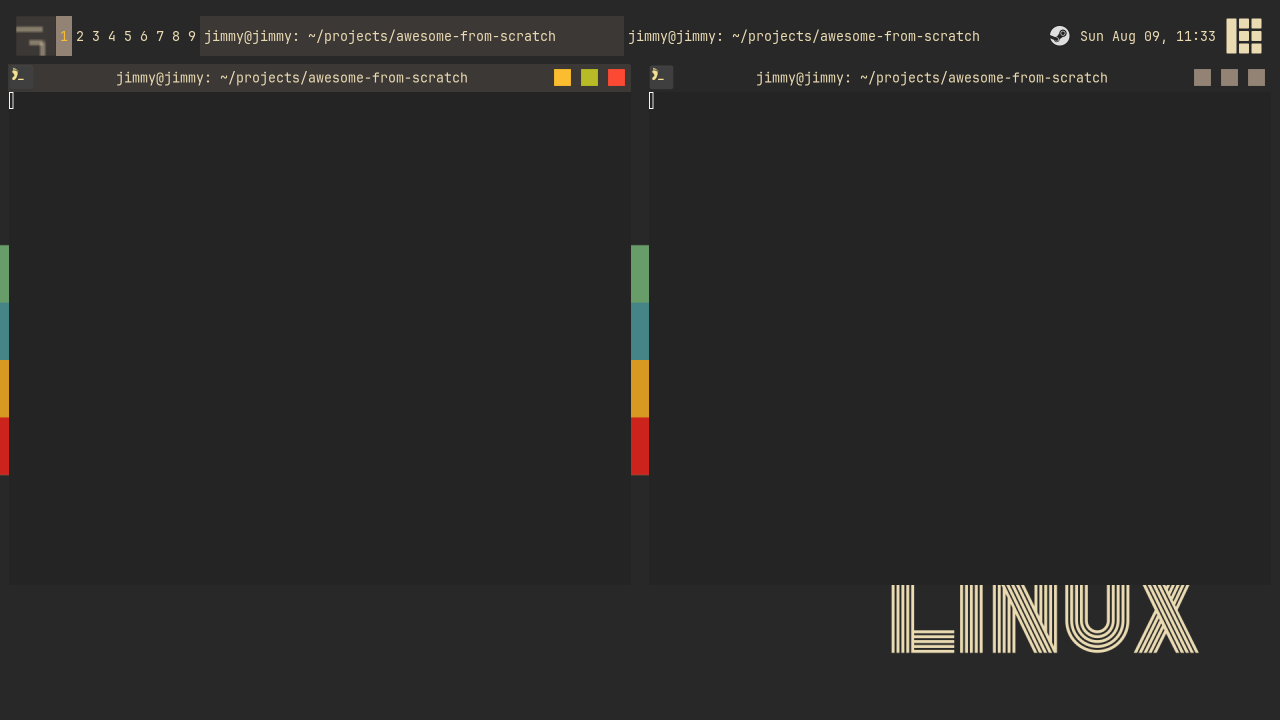
The finished code for this chapter is on the 01-theme branch.
git checkout 01-theme
somewm-client test start --config "$PWD/rc.lua" --name afs
Compare your work: git diff 00-default 01-theme