Your first config
This page writes a kiln config from an empty file. At the end you have three workspaces, a bar with a clock, terminals that tile themselves, and keys to open, close, switch and quit. The default config does far more, and Anatomy of rc.lua reads it; this page is for seeing the parts one at a time.
You need a built kiln (see Installation) and a Wayland desktop to run it inside. Every step below runs kiln as a window in your current session, so nothing here needs a logout.
1. A screen, a tag and two keys
Save this as rc.lua somewhere outside your checkout:
local kiln = require("kiln")
kiln.modkey = "super"

screen.on("added", function(s)
  tag.new { name = "1", screen = s }
end)

kiln.key { mods = { "mod" }, key = "Return", press = function() kiln.spawn("foot") end }
kiln.key { mods = { "mod", "ctrl" }, key = "r", press = kiln.reload }
kiln.key { mods = { "mod", "shift" }, key = "q", press = kiln.quit }
Run it from the kiln checkout, with the path to your file:
kiln_demo=$(mktemp -d /tmp/kiln-demo.XXXXXX)
KILN_RC=/path/to/rc.lua KILN_SOCK="$kiln_demo/eval.sock" \
  dbus-run-session -- ./build/kiln
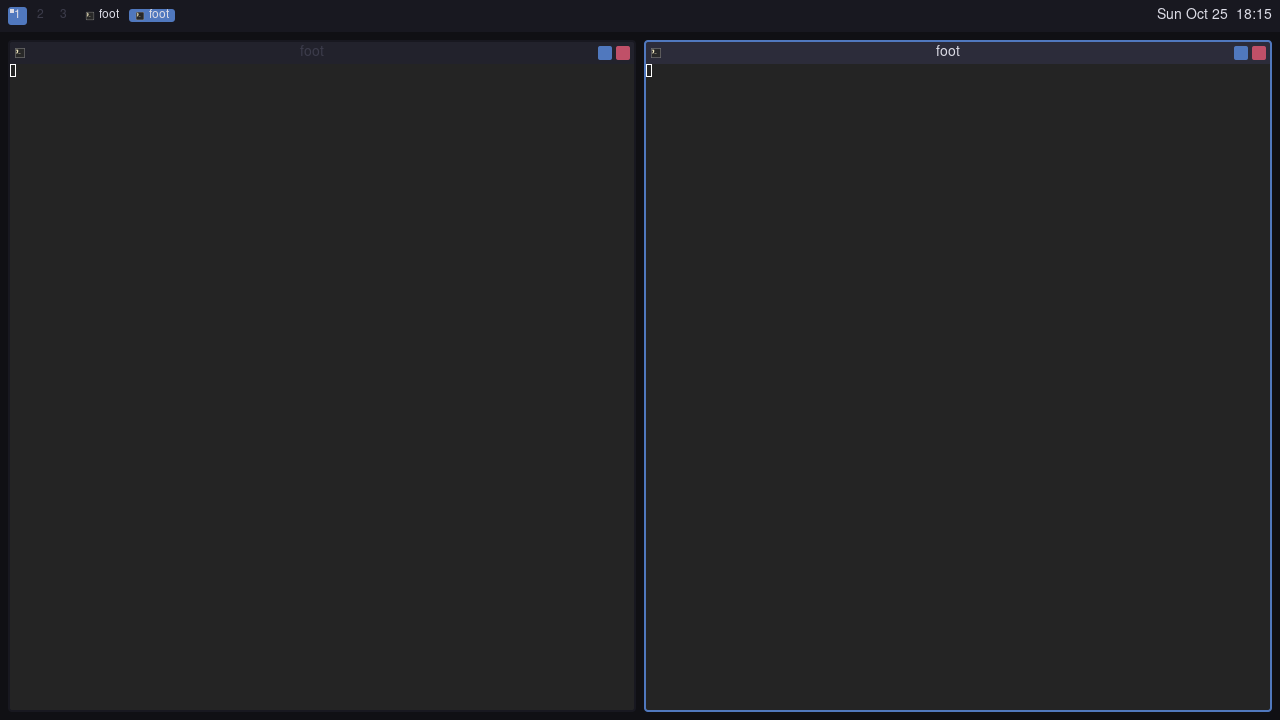
A window titled kiln opens, empty. Click into it so it has your keyboard,
then press super+Return twice. The first terminal fills the window; the
second splits it into two columns.
What each line did:
screen.on("added", fn)runsfnfor every monitor kiln finds, now and later. Everything that belongs to a screen is created here.tag.newmakes a workspace on that screen. A screen shows one or more tags; the tag holds its windows and the layout that arranges them. The layout defaults totile, which is why the two terminals became columns with nothing in the file saying so.kiln.keybinds a chord."mod"stands for whateverkiln.modkeyis, so one line changes every binding. The handler is an ordinary function.kiln.spawn("foot")starts a program. Replacefootwith your terminal.
The titlebars and borders on the terminals come from the standard library's defaults; the default config replaces them with its own.
2. A bar
Add this inside the screen.on("added") function, after tag.new, and press
super+ctrl+r to reload:
  ui.bar(s, { edge = "top" }, function()
    widgets.taglist(s)
    ui.spacer()
    widgets.clock()
  end)
and these two shortcuts near the top of the file, after local kiln:
local ui, widgets = kiln.ui, kiln.widgets
A bar appears along the top and the terminals move down to make room. Its
function lists what the bar contains, left to right: the tag list, then a
spacer, then the clock. ui.spacer() takes all the width the others leave, so
the clock sits at the right edge.
Layout with Clay has the four sizing
rules every element uses.
Kiln calls this function whenever the screen needs redrawing (a window opened,
a tag changed, the minute rolled over). It does not keep bar objects that you
update; it asks again. widgets.taglist and widgets.clock are functions that
declare their boxes the same way, written with the same API this file uses.
Add widgets.tasklist(s) after the taglist and reload: one entry per open
window, the focused one highlighted.
3. More tags, and keys to reach them
Replace the single tag.new with a loop, and bind the number keys:
  for _, name in ipairs({ "1", "2", "3" }) do
    tag.new { name = name, screen = s }
  end
kiln.key { mods = { "mod" }, key = "1-3", press = function(i)
  local t = screen.focused.tags[i]
  if t then t:view() end
end }
A key of the form "1-3" binds each key in the range and passes the pressed
number to the handler. t:view() makes that tag the one the screen shows.
Reload, press super+2: the terminals disappear (they live on tag 1), and the
bar's tag list marks tag 1 as occupied.
4. Close a window, change the layout
kiln.key { mods = { "mod" }, key = "q", press = kiln.focused(function(c) c:close() end) }
kiln.key { mods = { "mod" }, key = "space", press = function()
  local t = screen.focused.selected_tag
  if t then t.layout = kiln.layout.next(t.layout) end
end }
kiln.focused(fn) wraps a handler so it receives the focused window and does
nothing when there is none. c:close() asks the application to close.
The layout is a property of the tag. Writing t.layout redraws the screen;
there is no arrange call. kiln.layout.next walks the stock layouts in order,
so repeated presses of super+space move through tile, fair, max and
the rest. Open three terminals and watch them rearrange.
The whole file
local kiln = require("kiln")
local ui, widgets = kiln.ui, kiln.widgets
kiln.modkey = "super"

screen.on("added", function(s)
  for _, name in ipairs({ "1", "2", "3" }) do
    tag.new { name = name, screen = s }
  end
  ui.bar(s, { edge = "top" }, function()
    widgets.taglist(s)
    widgets.tasklist(s)
    ui.spacer()
    widgets.clock()
  end)
end)

kiln.key { mods = { "mod" }, key = "Return", press = function() kiln.spawn("foot") end }
kiln.key { mods = { "mod" }, key = "q", press = kiln.focused(function(c) c:close() end) }
kiln.key { mods = { "mod" }, key = "space", press = function()
  local t = screen.focused.selected_tag
  if t then t.layout = kiln.layout.next(t.layout) end
end }
kiln.key { mods = { "mod" }, key = "1-3", press = function(i)
  local t = screen.focused.tags[i]
  if t then t:view() end
end }
kiln.key { mods = { "mod", "ctrl" }, key = "r", press = kiln.reload }
kiln.key { mods = { "mod", "shift" }, key = "q", press = kiln.quit }
Press super+shift+q to quit the nested window.
What this file does not do
require("kiln") installs default policies, client borders and titlebars, and
the notification display. This file adds tags, a bar and keybindings.
It adds no floating-window rules, mouse move/resize bindings, theme overrides, menu bindings or launcher binding. The bundled config provides those:
- Anatomy of rc.lua reads the default config section by section.
- Keybindings covers mouse buttons, ranges and the hotkeys sheet.
- A bar from scratch builds the default bar, cell by cell.
- Theming changes the colours everything above used.